
Appearance
October 22, 2026 - Spreadsheet Reports: Completions Delivered on a Schedule 📊📬
Some boards, accreditors and partners don’t have a data feed. They want a spreadsheet of who completed what, laid out their way, arriving every week or month. Until now that meant exporting by hand or keeping a Zapier flow running. The new Spreadsheet Report accreditation type does it from inside LecturePanda: attach it to the credits that should be reported, choose the columns, and the file is built and delivered on the schedule you set. Every completion is reported exactly once.
Setting One Up
Go to Organization Settings → Accreditations, add an accreditation and choose Spreadsheet Report. The settings page has three parts.
The Spreadsheet Report Settings
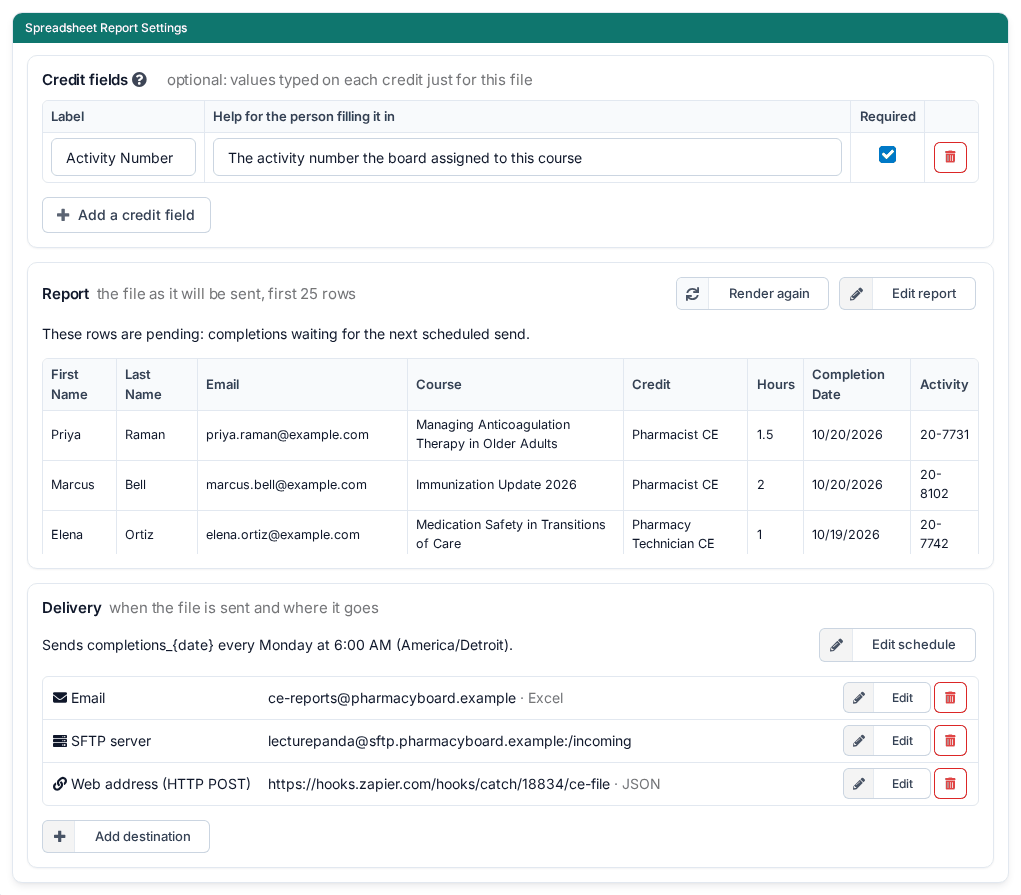
- Credit fields: values typed on each credit just for this file, such as the activity number a board assigned to the course. Each credit attached to the report gets an input for them, and required ones must be filled in before the credit saves.
- Report: the file as it will be sent, rendered over real completions, so you see exactly what the recipient will open.
- Delivery: one sentence saying when the file goes out, and the list of places it goes to, each with its own format.
The Columns Are Yours
The Column Builder
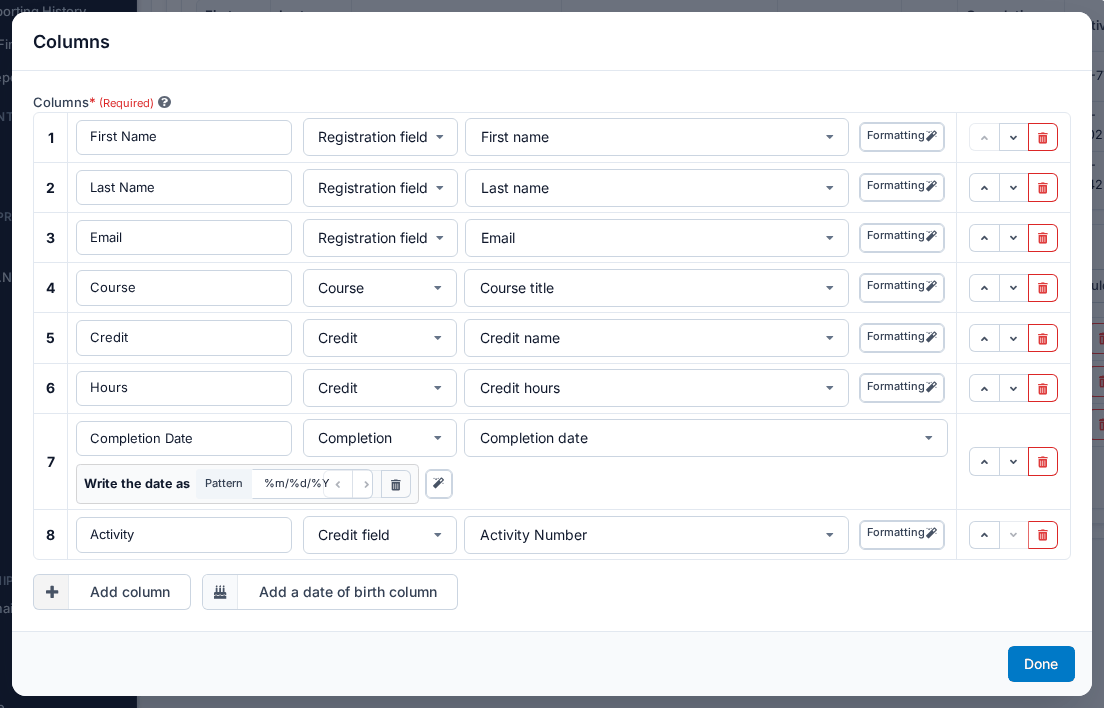
Edit report opens the column builder. Each column has a header named exactly as the recipient expects it, a source (registration fields, the course, the credit, the completion, a fixed value such as your provider number, or several sources combined) and optional formatting steps: title case, digits only, leading zeros, dates in a given pattern. Start from defaults gives you name, email, course, credit, hours and completion date to adjust, and Add a date of birth column builds the ACPE-style date of birth from separate month-day and year fields in one click.
Where It Goes
An Email Destination Sending an Excel File
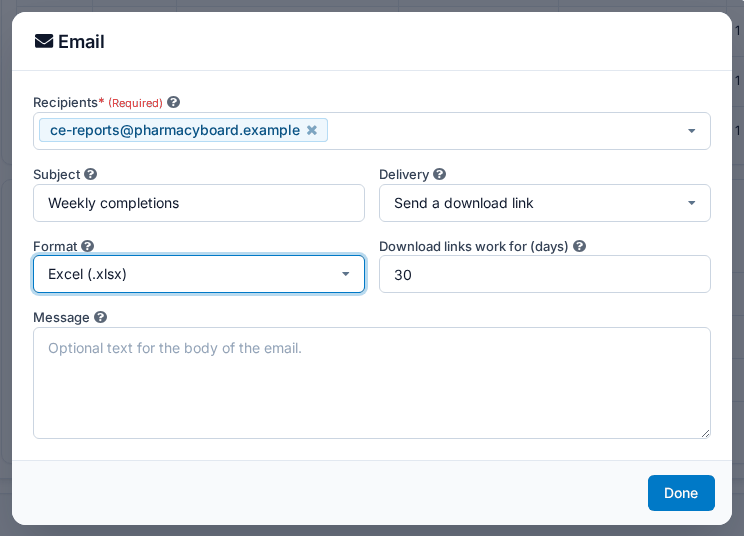
- Email: the file attached, or a download link that works without signing in and stops working after the number of days you choose, or both.
- Google Drive folder: the file is placed in a folder you share with LecturePanda. Nothing else in your Drive is visible to us.
- SFTP server: the file is uploaded to a folder on your server.
- Web address (HTTP POST): the file is posted to a URL of yours, for Zapier, Make, n8n or a script of your own.
Each destination picks its own format. Email, Google Drive and SFTP send a CSV or an Excel (.xlsx) file, so a board that works in Excel gets a workbook and one that imports gets a CSV. In both, every cell is written as text, so license numbers and zip codes keep their leading zeros. A report can have as many destinations as you need, and each send goes to all of them.
A Web Address Sending JSON
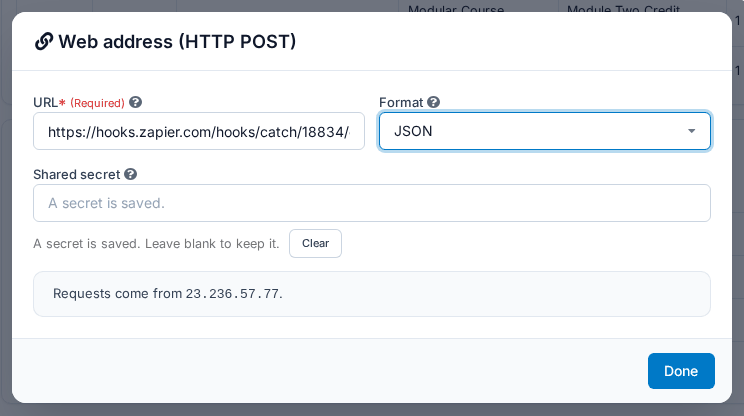
A web address can take the CSV file or Excel file as an upload, or JSON: the rows themselves as a list of objects keyed by your column headers, with the report name, period and row count beside them. That is the shape a Zapier catch hook or a script of your own actually wants.
Test It Before It Runs
Send a Test on the Accreditations List
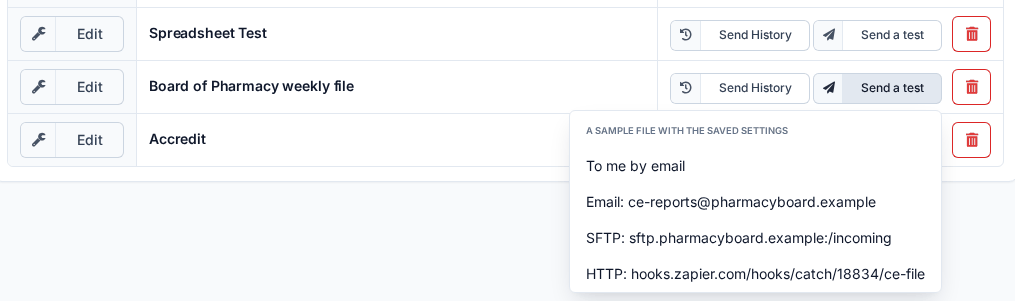
Once the report is saved, Send a test on the Accreditations list emails you a sample file, or delivers one to any destination, so a folder share or firewall rule is proven before the first scheduled send. Test sends never count as reported.
Every Send on Record
Send History
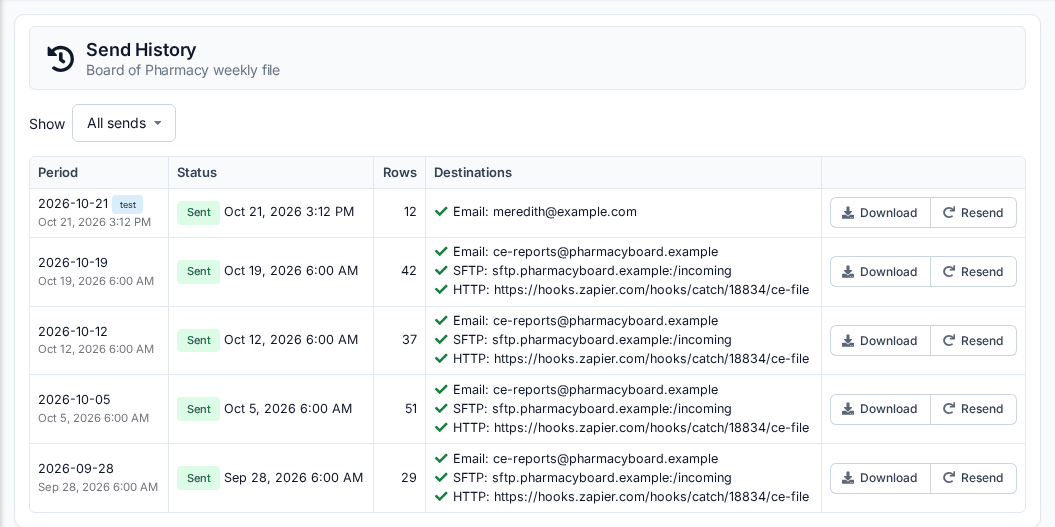
Send History lists every send with its row count, each destination and whether it received the file, a download of the rows as CSV or Excel, and Resend, which sends the same rows again in each destination’s current format. Files stay available for a year. A destination that can’t be reached is retried automatically, and the others are never sent twice.
Good to Know
- The file name has no extension. Name it
Pharmacy_CE_{date}and each destination adds .csv or .xlsx to match its format. - Completions recorded before the report was attached to a credit are not picked up. Export them once from Credit Reporting History to cover the gap.
- A credit can carry a Spreadsheet Report alongside CE Broker, ACPE or any other accreditation.