
Appearance
Subscription & Billing
This is the landing page of Organization Settings. It shows what you are paying for, how many participants you have left, and where your invoices and cards live.
The rest of Organization Settings
Settings that shape your courses — certificates, registration types, custom fields — are under Course Configuration. Reports and exports are under Reports & History.
Subscription
LecturePanda bills in two parts: an annual subscription fee for the account, and participants drawn from a bank you top up as you go. How Billing Works explains the model; this page is the reference for the controls.
Your current plan is shown at the top of the page:
| What you see | What it means |
|---|---|
| Trial Plan | Free trial. Activate a paid Pro subscription whenever you are ready. |
| Pro Plan — auto-renewal on | Active and renewing at the end of the billing period. |
| Pro Plan — auto-renewal off | Active until the end of the current period, then it stops. You can turn renewal back on any time before then. |
| Pro Plan (Suspended) | An invoice is overdue. Pay it to restore the account. |
| Inactive | The subscription has lapsed. Reactivating starts a new annual term. |
| Waived | Fees have been waived for your account. |
| Enterprise Plan | Managed by LecturePanda — contact support for changes. |
| Affiliate Plan | Managed by LecturePanda — contact support for changes. |
Activating a Pro subscription
On a Trial, Inactive, or Waived account you will see Click to Activate Pro Subscription. It confirms the annual price first, then generates an invoice and takes you to Invoices to pay it.
No price shown?
If no pricing has been set for your account the activation label is disabled. Email support@lecturepanda.com and we will set it up.
Turning auto-renewal on and off
The renewal state is a label on the subscription card that you click to toggle:
- Auto-Renewal Enabled — Click to Disable. Your subscription stays active to the end of the current billing period and then stops.
- Auto-Renewal Disabled — Click to Re-Enable. Renewal resumes at the end of the period.
Either way you get a confirmation dialog before anything changes.
How renewal is charged
Subscriptions renew annually. You get a reminder email about 30 days beforehand.
- With a saved card: your default card is charged automatically and you receive a confirmation email with the invoice attached.
- Without a saved card: a renewal invoice is emailed to you, and you pay through the link in it.
If an automatic charge fails — a declined or expired card — a renewal order is created with a status of Unpaid, auto-renewal is switched off, and you get an email explaining why with a link to pay manually. Leave that invoice unpaid long enough and the account is suspended.
To get back to automatic renewal, fix the card under Payment Methods and re-enable renewal on this page.
You can always reach this page
Subscription & Billing and Invoices stay reachable even while an account is suspended, so paying your way out is never blocked.
Participant Bank
The bank is your pool of prepaid participants. Each registration uses one. On a course with several modules, the first module a learner starts is covered by their registration, and each further module they start uses one more — see How Billing Works. The page shows Participants Remaining In Bank as a running count, with Order More Participants beside it.
Low Participant Threshold
You get a weekly alert when the bank drops below this number. It is also the trigger point for auto-refill.
Auto-Refill Participant Bank
Buys more participants for you when the bank falls below the threshold. Requires a saved card.
Auto-Refill Quantity
How many to buy each time. Must be a multiple of 50, up to 18,200, at the standard participant rate.
How auto-refill works
- LecturePanda checks your account daily.
- If the bank is below your threshold, a purchase for the configured quantity is started.
- Your default saved card is charged.
- On success the participants are added immediately and you get a confirmation email with an invoice attached.
- On failure auto-refill switches itself off and you get an email explaining why. Fix the card, then turn it back on.
Size the refill to your volume
Pick a quantity that comfortably covers a typical month, so you are not being topped up constantly — and set the threshold high enough that a refill has time to land before you run dry.
Auto-refill needs a card on file
Without a saved payment method the checkbox cannot be enabled — the page shows a Payment Method Required warning instead. Add one under Payment Methods first.
Invoices
Your order and payment history, and where you buy more participants.
Orders expire one year after purchase, and participants from the oldest order are used first.
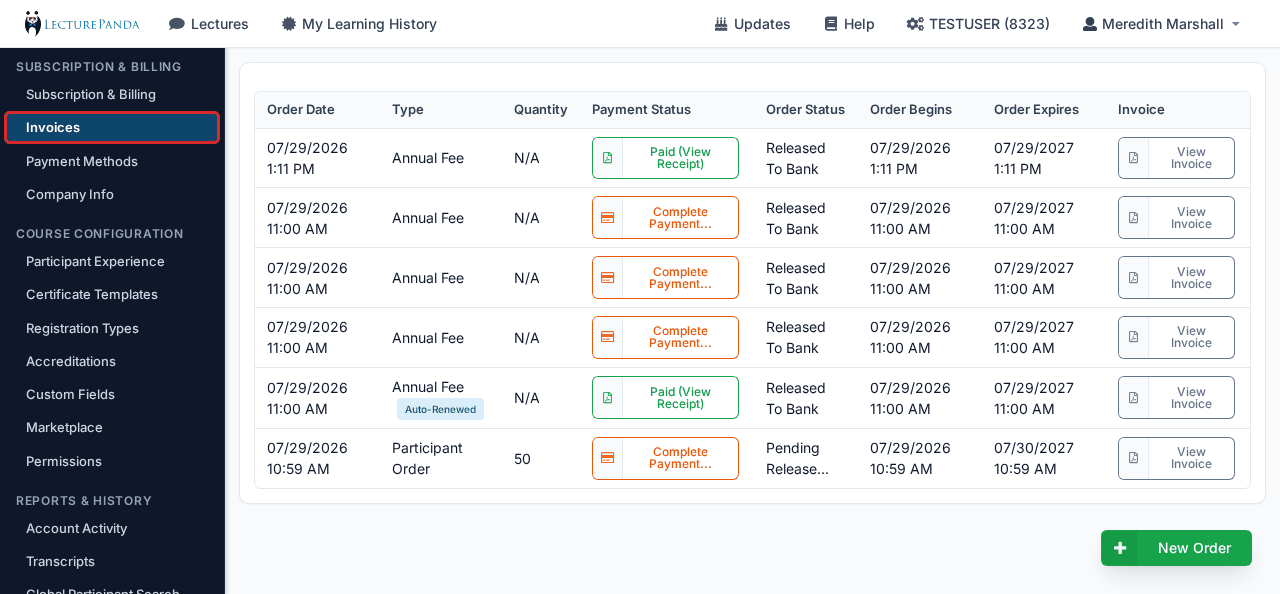
Use the green New Order button to buy participants. The order form opens in a dialog over the list, so you keep your place.
Each row shows:
| Column | What it tells you |
|---|---|
| Order Date | When the order was placed. |
| Type | Participant Order or Annual Fee, plus a badge if it was created for you — Auto-Renewed or Auto-Purchased. |
| Quantity | Participants purchased. Annual fee rows show N/A. |
| Payment Status | Paid (with a receipt to download), Payment Received, or Complete Payment… if it is still owing. |
| Order Status | Released To Bank once the participants are usable, or Pending Release…. |
| Order Begins / Order Expires | The year the order's participants are good for. |
| Invoice | Downloads the invoice PDF. |
Automatic orders are emailed too
Auto-refill and auto-renewal orders send an invoice PDF to your account administrators. Everything is also here whenever you need a copy.
Payment Methods
Saved credit and debit cards for paying orders. Card details are handled by Stripe and never stored on LecturePanda servers.
You need the ORDERS or ACCOUNT_SETTINGS permission to see this section.
The table lists each saved card:
| Column | Description |
|---|---|
| Card | Brand and last four digits. |
| Expiration | Expired cards are labelled in red and cannot be used to pay. |
| Status | A blue Default label marks the card used for automatic charges. |
| Actions | Set as default, or remove. |
Adding a card
- Click the green Add New Card.
- Enter the details in the secure Stripe form.
- Click Save Card.
You are returned to the list with the new card on it.
Setting a default
Click Set as Default beside any card. That card is pre-selected when you pay an order, and it is the card auto-refill and auto-renewal charge.
Removing a card
Click the red Remove, then Confirm. This cannot be undone, but you can add the card again later.
Removing your only card stops automatic billing
Auto-refill and auto-renewal both need a saved default card. If you remove the last one, add a replacement before your next renewal.
Paying with a saved card
When you pay an order your saved cards are listed with the default pre-selected. You can pick a different one, or choose Enter new card details — and tick Save this card for future purchases to keep it.
Expired cards stay visible
They are listed but cannot be selected. If your only card has expired, add a new one or enter details manually.
Company Info
Your organization's name, logo, and contact details.
These details identify you to your learners. Your logo and company name head the payment receipts learners receive, and the company name tells them who they are buying from.
Company Logo
A PNG or JPEG, smaller than 1 MB.
Company Name
Required.
Phone
Your primary contact number.
Address 1 / Address 2 / City / State / Zip
Your physical address.
Fill this in before you take your first payment
A receipt with no logo and no address is the first thing a paying registrant sees from you, and it is the document they forward to whoever reimburses them.