
Appearance
Quizzes
Review and edit all quizzes related to a specific lecture.
This page describes the classic pages
In the new course builder, quizzes belong to a module: open the module under Course Content and click Quizzes — see Course Modules. Add Quiz there offers New Quiz or Copy From Another Course, rows are dragged into order, and the quiz form is the same one described below. A banner at the top — Adding to <module> — names the module the quiz will belong to. A quiz added from this classic tab goes into the course's first module (first in the Course Outline order).
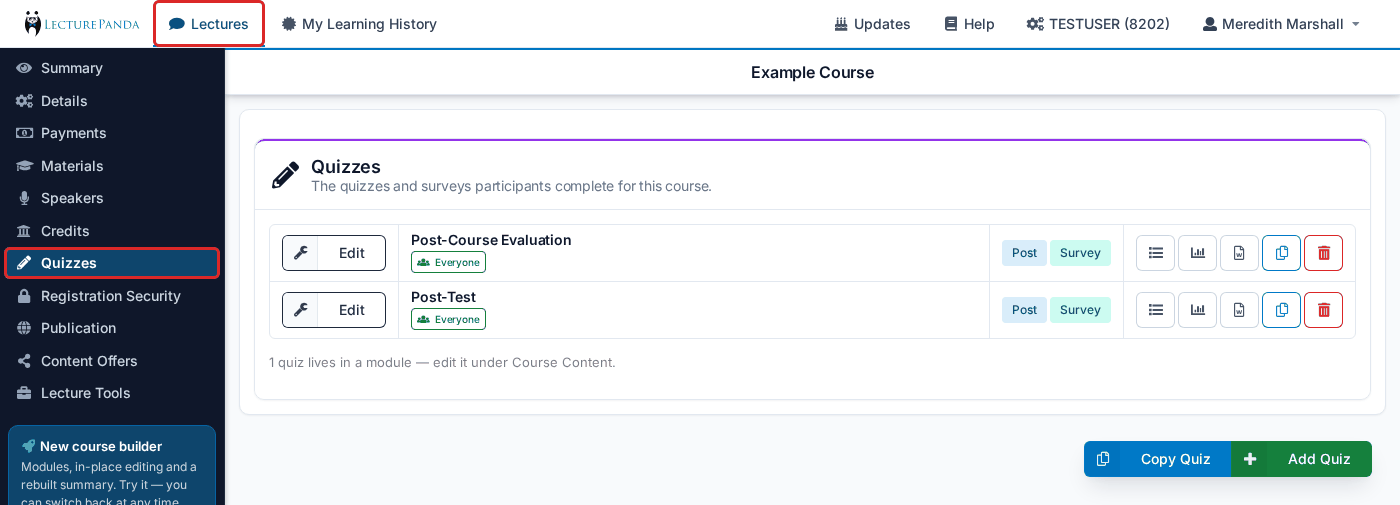
Quiz Info
View the quiz title and who should take this quiz at a glance. Admins also have the option to edit, copy, and view reports related to each quiz.
Copy Quiz
View all quizzes across all lectures and create a copy of an existing quiz.
TIP
This is an easy way to get a head start when creating a new quiz. This method also makes it simple to have the same quiz in each lecture, such as an evaluation.
Creating a Quiz
Use the green "+ Add Quiz" button to create a new quiz.
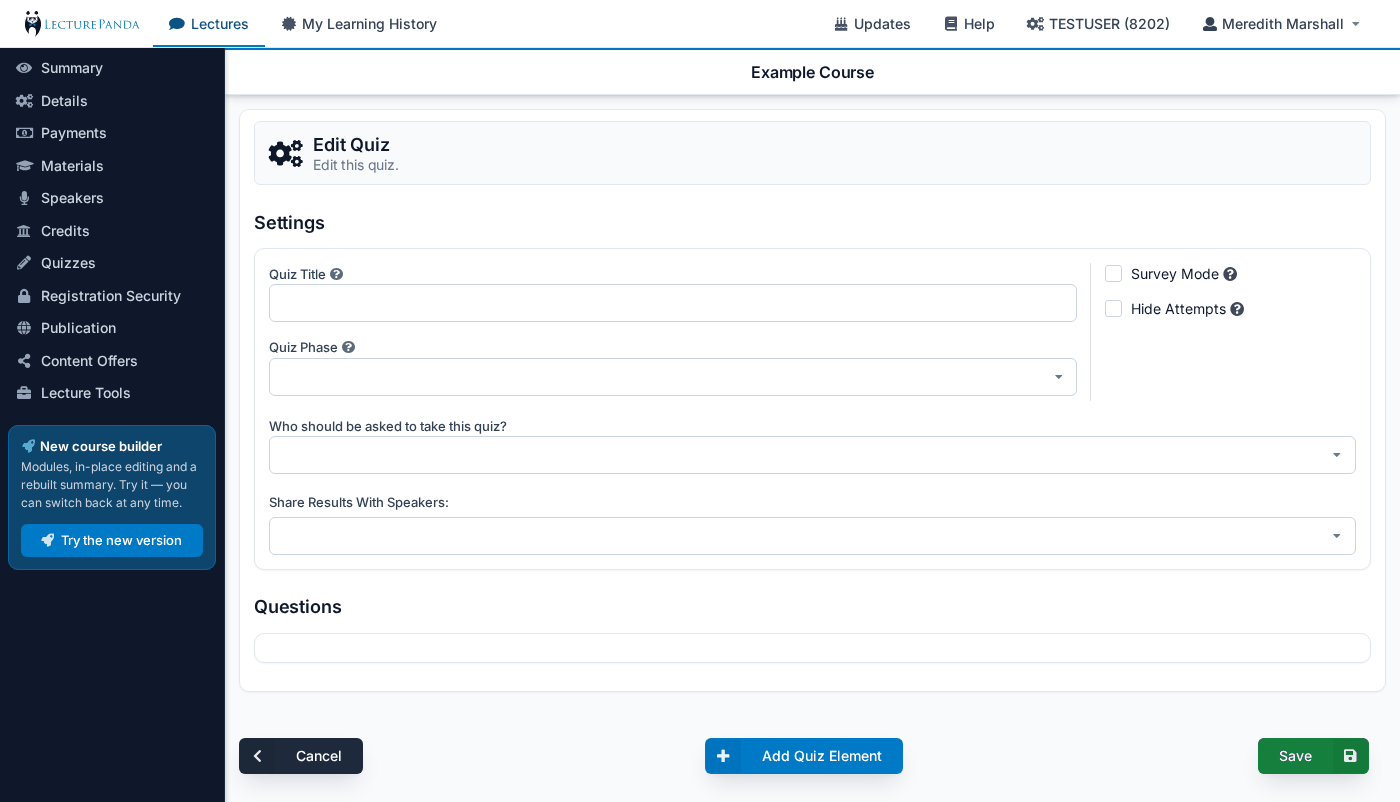
Quiz Title
Enter the quiz title.
Quiz Phase
Determine when this quiz should be administered. Options include:
- Pre-Test
- Audience Polling
- Post-Test
- 3 Month Follow Up
- 6 Month Follow Up
- 12 Month Follow Up
INFO
If Post-Test is selected and the quiz is not in survey mode, Admins will also have the ability to set a passing grade and attempt limit.
Who should be asked to take this quiz?
Determine who should take this quiz. Options include:
- Everyone
- Certain Credits
- Certain Registration Types
- Nobody (use this option to disable the quiz but maintain all stats)
TIP
When selecting Certain Credits or Certain Registration types, an additional field will appear where you can select which credits/types should take this quiz.
Share Results with Speakers
Select which speaker(s) can view quiz results.
Hide Attempts
Keeps the learner from seeing how many attempts they have used or have left. The attempt limit still applies — it is just not displayed.
Survey Mode
ENABLING this option puts the quiz into “survey mode” which means all answers are accepted as correct and feedback is disabled. If a quiz is in survey mode, Admins will see an “Options” tab when editing a question where they can set the question as optional, required, or conditionally required.
What “conditionally required” actually does
It makes a question required only when an earlier question was answered a particular way — "Did you experience any issues?" set to Yes can make "Please describe the issue" mandatory, while a No leaves it optional.
The follow-up question is still shown either way. Conditional requirement changes whether an answer is compulsory, not whether the question appears.
DISABLING this option means this quiz is graded and all questions are required. Admins will also be able to enter correct answers, question feedback (for multiple choice and multi-select questions) and a passing grade.
WARNING
Each quiz is either graded or in survey mode, which keeps scoring unambiguous. When you need both a graded assessment and an ungraded evaluation on the same course, create two quizzes — that's the standard setup, and both appear in the learner's list.
Add a Question
Use the blue “+ Add Quiz Element” button to add a quiz question. Select the type of question from the list provided and then edit as desired. Options include:
- Star Rating
- Free Text Question
- Multiple Choice Question (can include feedback)
- HTML Header
- Multi-Select Question (can include feedback)
INFO
The Survey Mode setting impacts how a quiz functions. See information on Survey Mode above.
Building an Audience Poll
Live in-session polling — the LecturePanda equivalent of Slido or Poll Everywhere — is just a quiz with its Quiz Phase set to Audience Polling. Two things catch people out when building one:
- Set the phase to Audience Polling, not Pre-Test or Post-Test. That's what marks it as a live in-room poll rather than an assessment in the course flow.
- Turn Survey Mode off if you want to show the audience which answer was right. Survey mode hides the correct-answer selection entirely, so there's no checkbox to tick.
Add as many questions as the session needs — the speaker broadcasts them one at a time rather than the audience working through them alone.
Running it during the session uses the Interactive Tools on the course (in the course builder: Tools & Reports › Speaker Tools): the Speaker Page lists the questions and broadcasts whichever one is clicked, and the audience joins through the Response Page link or by scanning the Interactive QR Code. The speaker sees a live participant count and closes the room when the session ends.
Speakers can build their own polls
The Speaker Page lets speakers create polling questions themselves, with fewer settings to worry about. Access to it comes from the speaker's introductory email — so if you'd rather author every poll centrally, simply don't send that email. There's no separate switch for it, and a poll a speaker has already created has to be removed by support.
Poll results live where every other quiz's results do — the report icons on the quiz row. See Reading the results.
Quizzes vs. Embedded Video Questions
Quizzes and embedded video questions serve different purposes:
Embedded Video Questions pop up at specific timestamps during video playback. They are designed for engagement and attention checks. They do not support passing grades or re-attempts.
Quizzes are taken after completing a video or session. They support passing grades (e.g., 70%), multiple attempts, and are best for knowledge assessment and CE requirements.
TIP
If you need participants to achieve a passing score, always use a Quiz — not embedded video questions.
Testing a Quiz Before You Launch
The build view is designed to match what learners see, so you don't need to register just to check layout, question wording, or how the answer options display.
What's worth testing as a learner:
- Correct answers — that right and wrong responses behave as intended
- Feedback — how your messages actually appear after an answer
- Conditional logic — that any branching based on earlier answers works
To do that, register yourself using a personal or secondary email address (not your admin email, which conflicts with your admin account) and walk the whole path through. See Moving Content Into LecturePanda.
Giving a Learner More Attempts
To let someone retake a quiz after they've used all their attempts, edit the quiz and raise the Attempt Limit. That clears the failed status for anyone who was out of attempts — it isn't per learner, so you can lower it again once they've passed.
Once a learner passes, their result stands and the quiz closes for them even if attempts remain, so a passing score is locked in. See Claiming Credit.