
Appearance
The Course Builder
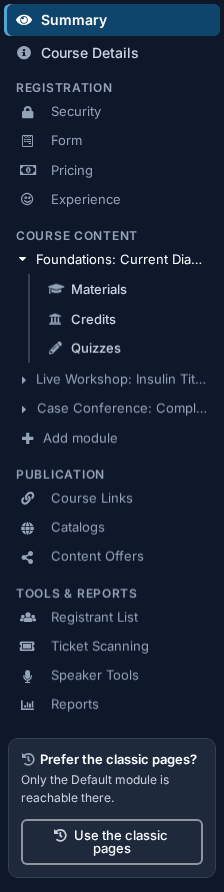
The new way to build a course: a course is made of modules, the menu down the left is grouped by what you are setting up, and the Summary shows the whole setup at a glance.
LecturePanda has two versions of the pages you build a course with:
- The course builder — the new version. This section of the reference describes it, one page per menu area.
- The classic pages — the Details, Payments, Materials, Speakers, Credits, Quizzes, Registration Security, Publication, Content Offers and Lecture Tools tabs. They are described under Classic Pages in the sidebar of this site.
Your courses are the same behind both. Nothing is converted when you switch, and learners never see a difference.
Switching to the course builder
You turn it on yourself. There is nothing to request, and the choice is yours alone — your colleagues keep whichever pages they are using.
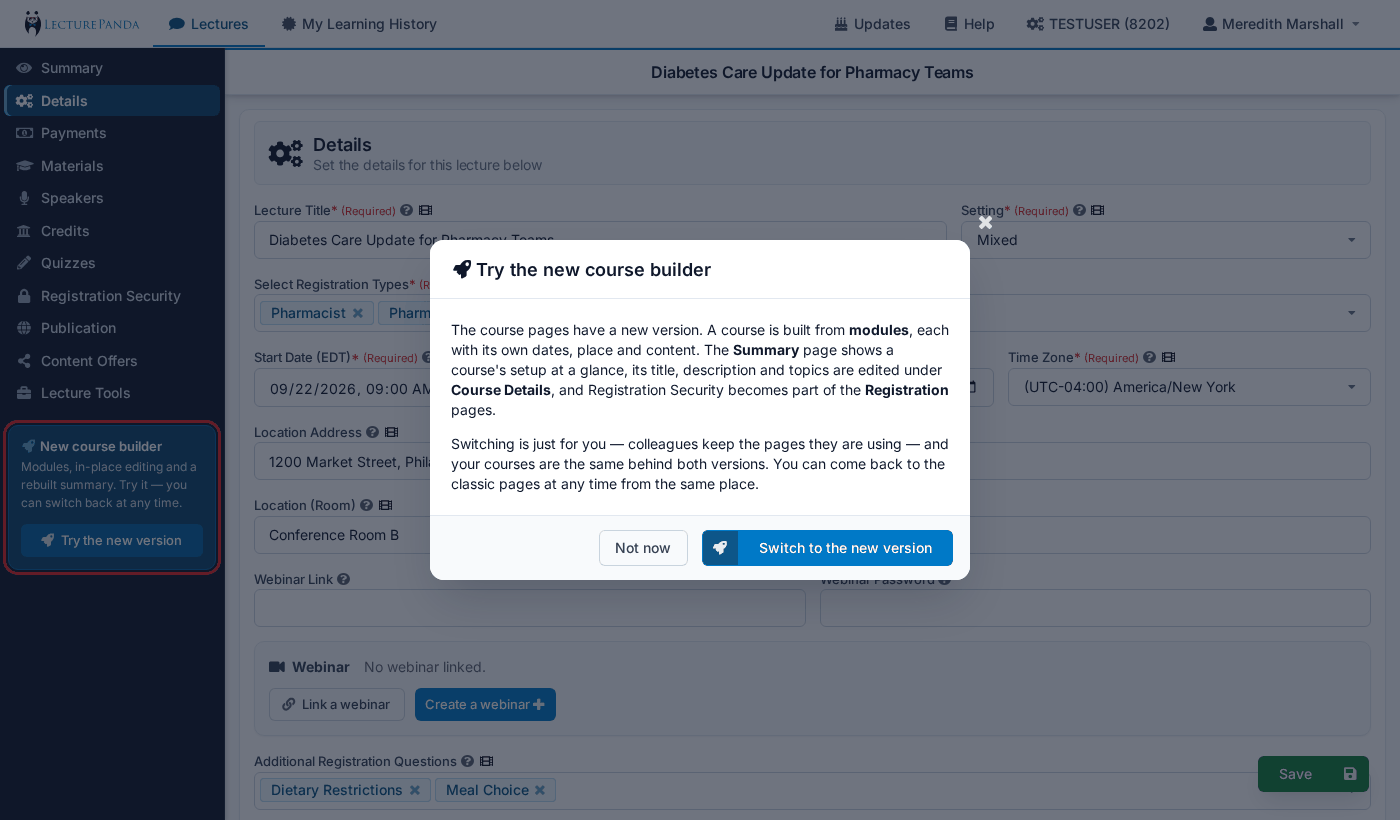
- Open any course. At the bottom of the menu on the left there is a box titled New course builder. Click Try the new version.
- A dialog titled Try the new course builder explains the change. Click Switch to the new version (or Not now to leave things as they are).
- You land on the course's Summary page in the course builder.
The same dialog opens from your user menu, top right: Try the new version.
Switching back to the classic pages
- At the bottom of the course menu, in the box titled Prefer the classic pages?, click Use the classic pages. (The same entry is in your user menu, top right.)
- In the Back to the classic pages dialog, click Switch to the classic pages (or Stay here).
You can switch as often as you like.
The classic pages edit the first module only
The classic pages treat a course as a single unit, so they edit only the first module in the Course Outline order — whatever it is called. Materials, credits and quizzes in any other module — and the module controls themselves: dates, place and order — are out of reach until you switch back to the course builder. Nothing is lost, and learners are unaffected. On the classic Materials, Credits and Quizzes tabs a grey note tells you how many items "are in other modules. Switch to the new course builder to see them." The classic Speakers tab shows the first module's speakers the same way.
The menu
| Group | Rows | Reference page |
|---|---|---|
| — | Summary | Summary |
| — | Course Details | Course Details |
| Registration | Security, Form, Pricing, Experience | Security, Form, Pricing, Experience |
| Course Content | One row per module. The open module shows Materials, Credits, Quizzes and Speakers. + Add module is the last row. | Course Modules, Speakers |
| Publication | Course Links, Catalogs, Content Offers | Publication |
| Tools & Reports | Registrant List, Ticket Scanning, Speaker Tools, Reports | Tools & Reports |
Content Offers only appears on accounts that use the Marketplace. Rows you do not have permission for are hidden, so a colleague with a narrower role may see a shorter menu.
The groups are in the order a course is set up: what the course is, who may register and what they are asked, what they work through, where it is listed, and the tools you use while it runs.
Where did it go?
Every classic tab and setting, and where to find it in the course builder.
Summary and Details
| Classic | In the course builder |
|---|---|
| Summary tab | Summary — now a read-only overview; each row opens the page where that setting is changed |
| Details › Lecture Title | Course Details — the title at the top, Edit beside it |
| Details › Additional Info (the description) | Course Details — straight under the title |
| Details › Time Zone | Course Details — Time zone |
| Details › Setting | Each module's settings page — Setting (Course Modules) |
| Details › Start Date / End Date | Each module's settings page — Starts / Ends |
| Details › Location Address, Location (Room), Webinar Link, Webinar Password, Conference Line, the Webinar panel | Each Live or Mixed module's settings page — the Event section |
| Details › Select Registration Types | Registration › Form — the Audience section |
| Details › Additional Registration Questions | Registration › Form — the Additional Questions section |
| Details › Select Topics | Publication › Catalogs — the Topics section |
| Details › Select Check-in Process | Each module's settings page — Additional settings › Check-in (per-module check-in) |
| Details › Hide Next Lectures | Registration › Experience — When they finish, show the courses this one unlocks (the switch is the other way round: on means shown) |
| Details › Disable Follow-Up Reminder Emails | Registration › Experience — Weekly reminder emails until they finish (on means sent) |
The other tabs
| Classic | In the course builder |
|---|---|
| Payments tab | Registration › Pricing — the same page under a new name |
| Materials tab | Course Content › module › Materials (Course Modules) |
| Credits tab | Course Content › module › Credits |
| Quizzes tab | Course Content › module › Quizzes |
| Speakers tab — the list of speakers | Course Content › module › Speakers (Speakers): each module has its own list, the same one the classic tab shows for that module |
| Tasks tab — speakers' tasks | Course Content › module › Speakers: a connected speaker's Tasks button (Speakers) |
| Speakers tab — Speaker Files | Tools & Reports › Speaker Tools — under the tools |
| Speakers tab — the speaker's audience response page | Gone: you build audience polls on the module's Quizzes page with the Audience Polling phase; with Speaker Coordination, speakers build their own live audience questions from a task under Speaker Portal. The course's live questions link is on Tools & Reports › Speaker Tools. See Live audience questions |
| Registration Security tab | Registration › Security |
| Registration Security › Require Code To Register and its codes | Registration › Security — the Unique sign-in codes rule and the Access Codes section |
| Publication tab — the catalogs | Publication › Catalogs |
| Publication tab — Announcement Flyer | Registration › Experience |
| Content Offers tab | Publication › Content Offers |
Lecture Tools
| Classic | In the course builder |
|---|---|
| Registration Tools › Registration Page, Registration QR Code, Kiosk Mode Registration Page | Publication › Course Links |
| Registration Tools › Check-In Page | Tools & Reports › Ticket Scanning |
| Registration Tools › View Registrations | Tools & Reports › Registrant List |
| Interactive Tools (Speaker Page, Response Page, Interactive QR Code, View Responses) | Tools & Reports › Speaker Tools |
| Reports (Submitted ACPE Report, Completions Report, Video Responses) | Tools & Reports › Reports |
| Lecture Short Code | Publication › Course Links — Short Code |
| Copy URL for Announcement Page, Embed Announcement Page, Copy Lecture Key | Publication › Course Links |
Old bookmarks still work
A bookmark to a classic address opens the matching course builder page: Details opens Course Details, Payments opens Pricing, Lecture Tools opens Speaker Tools, and Materials, Credits and Quizzes open the first module's pages.
What is new in the course builder
- Modules. A course is built from one or more modules, each with its own dates, setting, place, webinar, materials, credits and quizzes. See Course Modules.
- Access codes you can track. Generate registration codes in batches, email each one from the page, and see which have been sent and used. See Security.
- An email domains rule on the Security page.
- Per-module check-in, with a picker on the scanning page for which module you are checking people in to.