
Appearance
Working Through a Course
Every course runs through the same four steps. Knowing what each one does — and what unlocks the next — explains almost everything that feels stuck.
The four steps
Across the top of your course page you'll see four steps, and a bar at the bottom of the page with a button for the step before and the step after. (If your course opens on a list of Parts instead, each part has these same four steps inside it — see Courses with several parts.)
Learning Materials → Claim Credits → Complete Evaluations → Submit
| Step | What you do |
|---|---|
| Learning Materials | Watch the videos and work through any learning modules (interactive lessons) |
| Claim Credits | Choose which credits you're claiming for this course |
| Complete Evaluations | Finish the quizzes, surveys and evaluations on your list |
| Submit | Send in your completion and download your certificates |
The strip across the top uses short names — Materials, Credits, Evaluations, Complete — and the buttons in the bottom bar use the full ones.

Use the buttons in the bottom bar to move between steps; the steps across the top take you back to any step you've already been through. Your progress saves as you go, so you can leave at any point and pick up later from the same link.
What unlocks each step
Steps that aren't available yet can't be clicked, and the bottom bar says what's still needed next to the greyed-out button. This is behind nearly every "it won't let me continue" — the step isn't broken, something earlier is unfinished.
- Claim Credits opens once the required videos and learning modules are complete.
- Complete Evaluations opens once you've selected at least one credit — and, where attendance is taken, once you've been checked in.
- Submit opens once every quiz and evaluation on your list is finished. For a live session it also stays closed until that event's date — on a course with several parts, that means the date of the part you are in.
In the picture above only Materials is available — the other three are greyed out because the videos haven't been finished yet. As each step is completed the next one lights up:
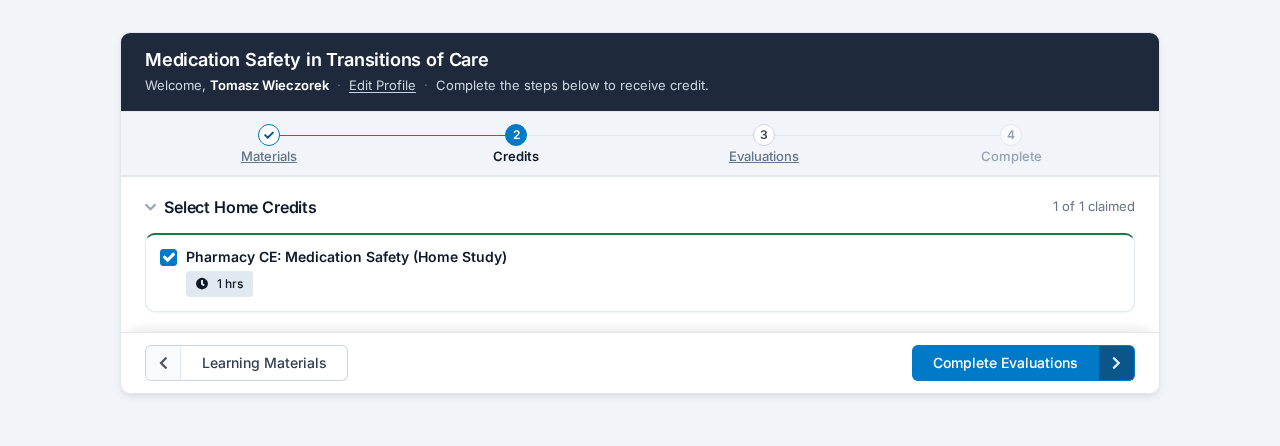
So if a step is greyed out, work backwards: the thing blocking you is in the step before it. When a Video Won't Complete and Quizzes & Evaluations cover the two usual culprits.
Long agendas
On a multi-day event the credits are grouped by day, with the time of each session down the left. Click a day's heading to fold it away and see only the day you're interested in; the heading keeps a count of how many of that day's credits you've claimed.
Claiming a credit is not finishing the course
This one catches people out, so it's worth being clear about.
Selecting your credits at step 2 records what you intend to claim. It does not finish the course, and it does not produce a certificate. You still have to complete the evaluations and submit. On a course with several parts, that goes for each part.
If you're sure you claimed your credit but no certificate ever appeared, this is almost certainly what happened. Go back into the course and work through the remaining steps.
Nothing is lost while you're partway through
Leaving a course half-finished doesn't cost you anything. Your videos stay watched and your quiz results stay recorded. Come back through your link whenever you're ready.
Every video is its own row
The Learning Materials step lists each video separately, in the order your course provider arranged the content. Every video has its player right there on the page — there is nothing to click open — with its status under the title: Ready to watch, Incomplete, In progress with the minutes you've watched, Complete!, or locked with "Complete [the item before it] to unlock". A video you have to watch carries an orange Required label. Each video picks up where you left off.
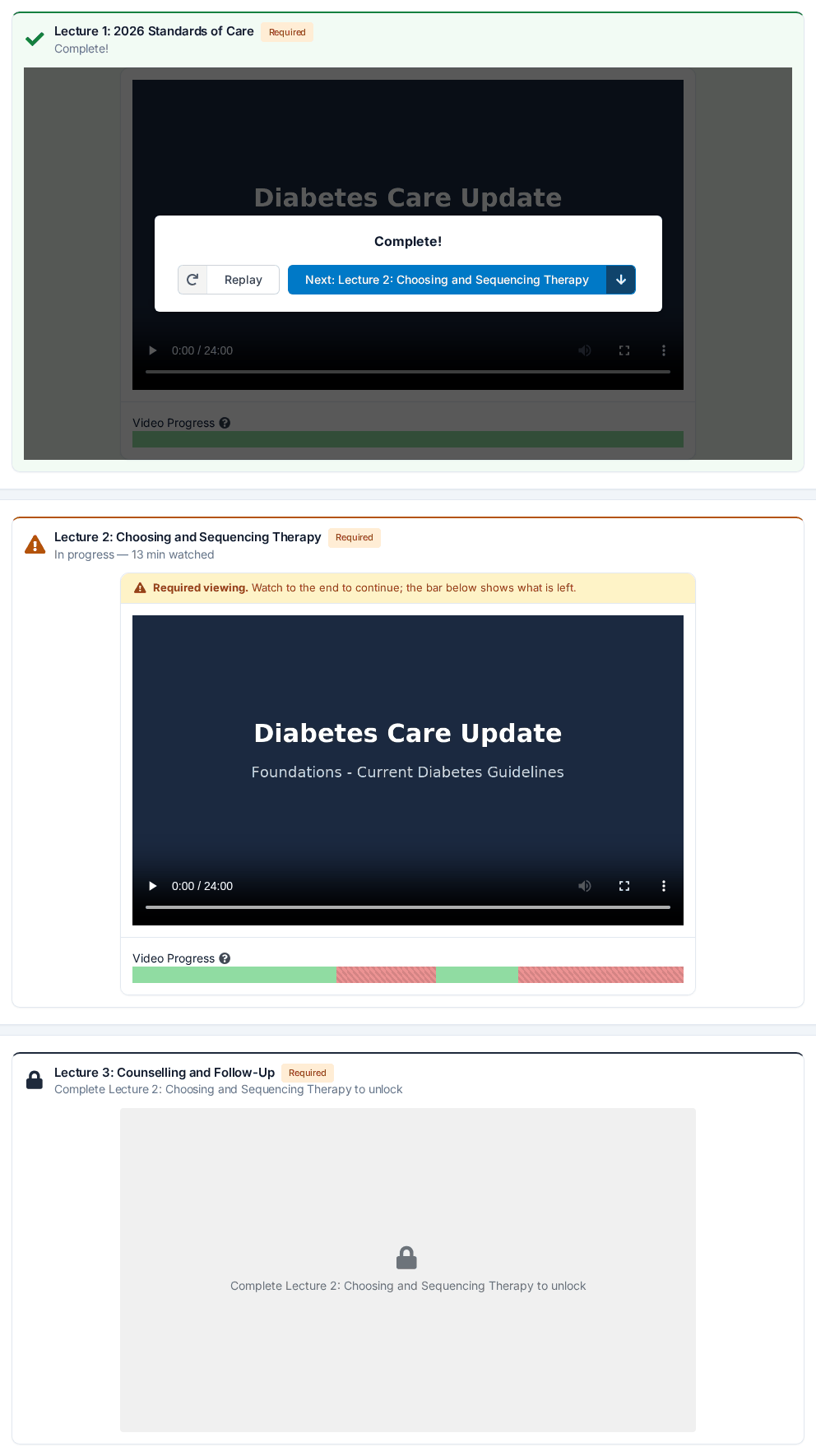
Finishing one video doesn't finish the course. When a required video is done, a card reading Complete! covers the player, with a Replay button and a Next: … button that names the next thing you still have to do. Click it and the page moves you there. When nothing required is left, the button reads All required items done — continue and takes you to the button for the next step. When a Video Won't Complete explains each status, and why a locked video won't play.
Courses with several parts
Some courses are one run of the four steps. Others are split into parts — a series of weekly sessions, say, or a conference with some reading to do first. A course with several parts opens on a list headed Parts, with a count such as 1 of 3 complete, and the line "Please complete the parts below to receive credit."
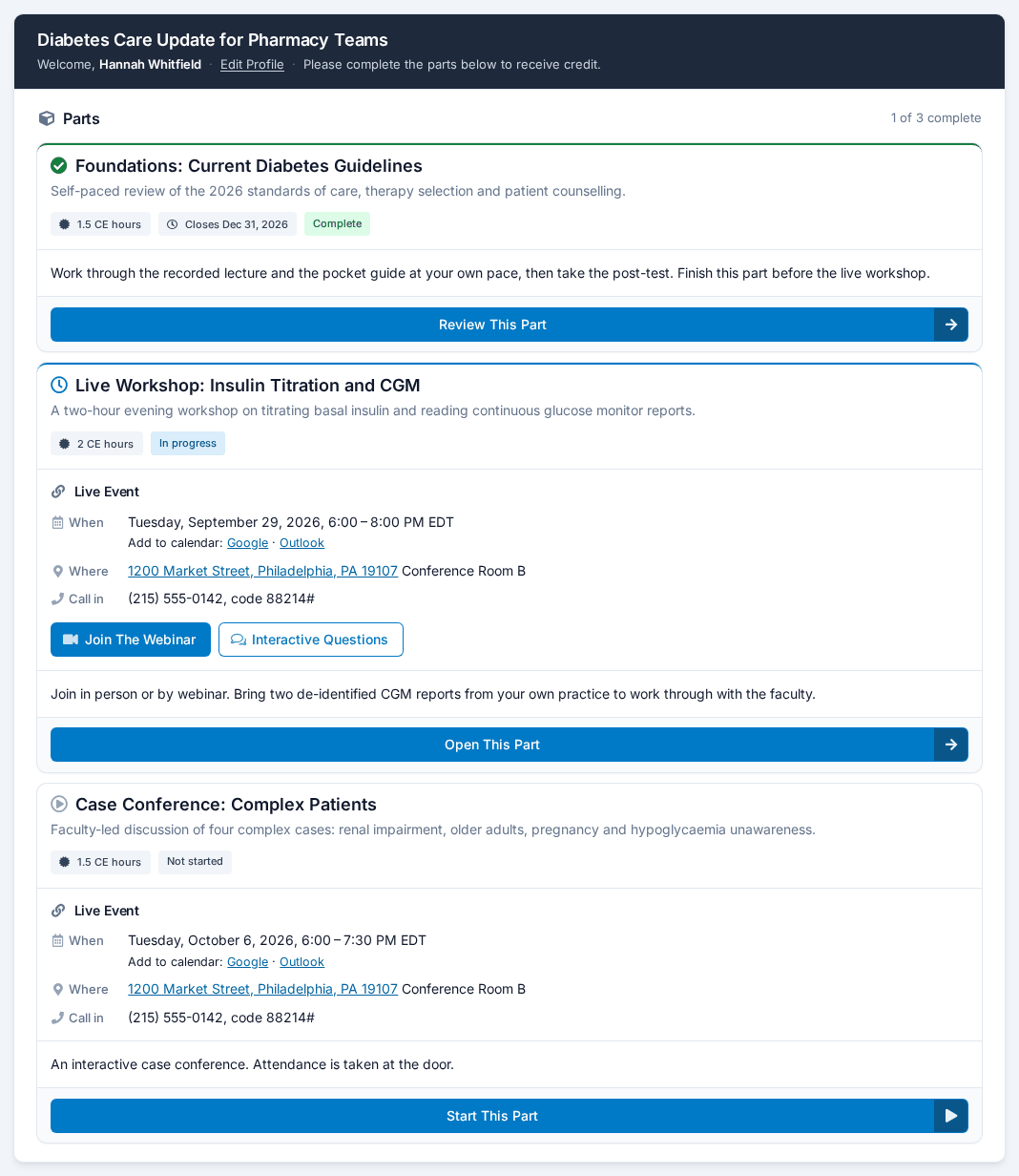
Each part is a card. It shows:
- the part's name and a short description
- how many CE hours it is worth
- a Closes date, if the part has a deadline — it turns red in the last week
- where you stand: Not started, In progress, Complete, Locked or Closed
Every part has the same four steps inside it, with its own materials, its own credits and its own evaluations. You finish and submit each part separately, and each one gives you its own certificates.
Starting and opening a part
| The button says | What it means |
|---|---|
| Start This Part | You haven't begun this part. Click it to begin. |
| Open This Part | You've started it. Click to carry on where you left off. |
| Review This Part | You've finished it. Click to look back at it or download its certificates again. |
Once you are inside a part, the line above the card reads All Parts > the part's name. Click All Parts to go back to the list. When you reach the last step of a part, a button offers Continue: with the name of the next part you still have to do, or Back to All Parts when there is no other part waiting. The button in the bottom bar reads Back to Evaluations on that step.

A course with only one part skips the list and opens straight into the four steps.
A part that is locked or closed
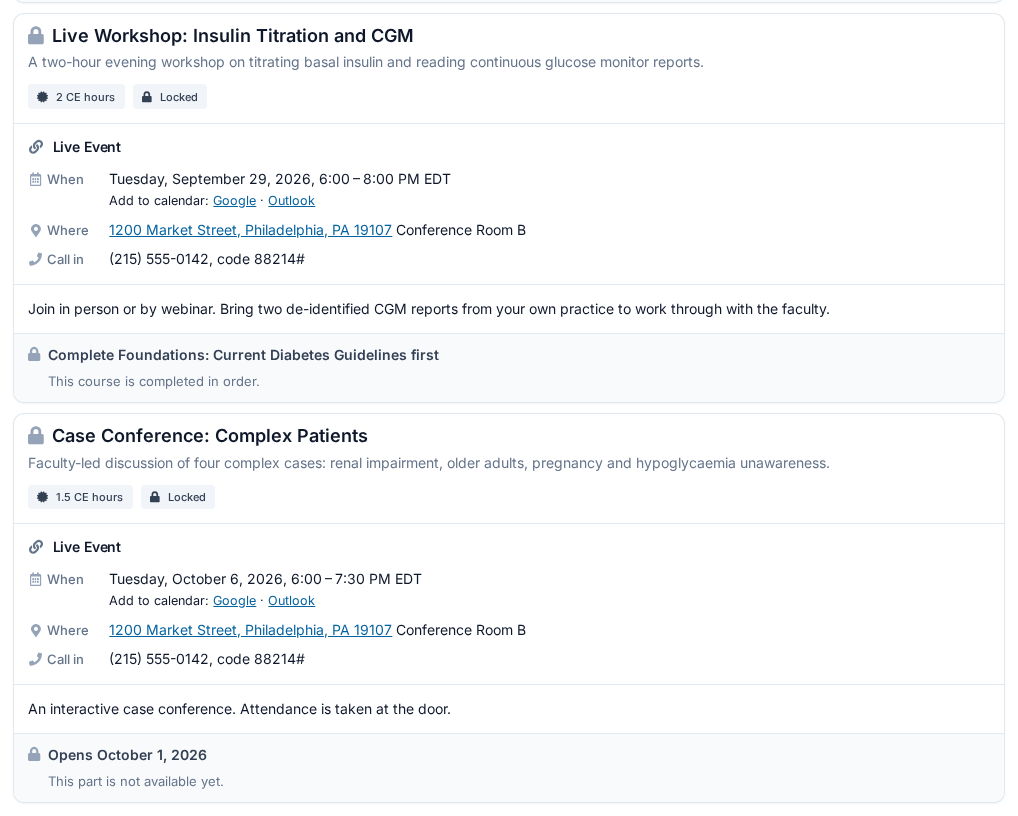
A part without a button can't be entered yet. The card says why:
- "Complete … first" and "This course is completed in order." — your provider wants the parts done in order. Finish the part it names and this one unlocks. A part you have already started never locks again.
- "Opens" with a date, and "This part is not available yet." — it opens on that date. There is nothing to do until then.
- "Closed" with a date, and "This part can no longer be completed. Contact the course organizer if you still need access." — the deadline has passed. Only your course provider can help.
If you open a part through an old link or bookmark and it is not available, the page says Part Not Yet Available, Part Access Closed or Part Unavailable, with a Back to parts button.
Live sessions: dates, the join link and live questions
A live part's card has a Live Event block. It lists When (in your time zone), Where with a map link, and Call in if there is a phone line. Under the date is Add to calendar: Google · Outlook — one entry for each live part, so a two-session course gives you two.
The Join The Webinar button appears on the card once you have started that part. If the speaker will be asking the audience questions, an Interactive Questions button sits beside it. Both are also at the top of the Learning Materials step inside the part. On a course with one part, look for the same Live Event block at the top of the Learning Materials step.
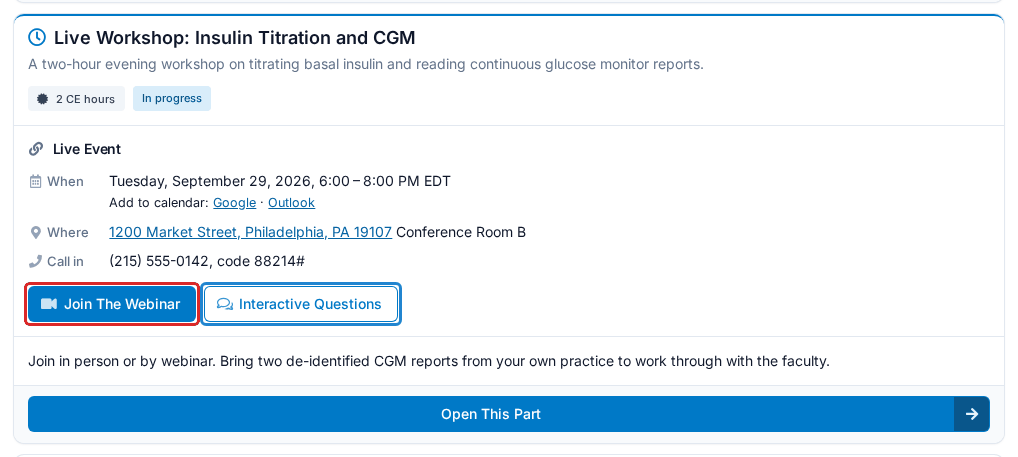
About an hour before a live session you also get a "starting soon" email with the Join The Webinar button in it. If you haven't started that part yet, the email sends you to your course page instead — press Start This Part and the join button appears.
Emails that take you to one part
Some emails are about a single part — the "starting soon" email, a note that a part is now open, a Start this part link in a reminder. The button in those emails takes you to that part. If you have already started it, you land inside it. If you haven't, you land on the Parts list with that part's card outlined for a few seconds so you can spot it.
An email never starts a part for you. You always press Start This Part yourself.
"Please confirm it's you"
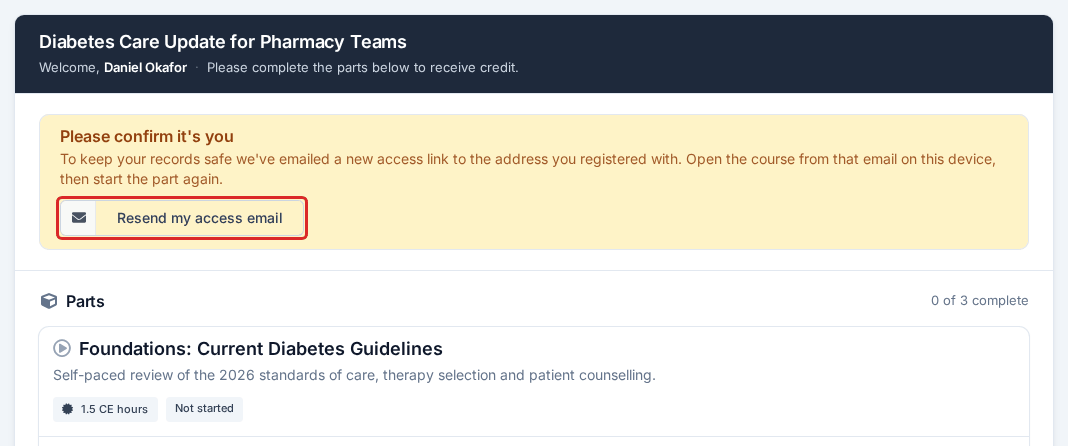
Pressing Start This Part on a phone or computer you haven't used for this course before can bring up a notice headed Please confirm it's you. It's a safety check, not an error. A fresh access email has already been sent to the address you registered with. Open it on the same device, click Confirm Identity and Continue, then press Start This Part again. If the email doesn't arrive, click Resend my access email on the notice and check your spam folder.
Other messages when starting a part
- Part Start Blocked — your course provider needs to sort something out on their account. Contact them; nothing is wrong with your registration.
- Registration Inactive — your registration has been switched off. Ask your course provider.
- Unable To Start This Part — something went wrong. Try again, and contact your provider if it keeps happening.
Checking in at a live event
Some in-person sessions take attendance. When they do, you need to be checked in before you can move past the Claim Credits step — the bottom bar says "Check in at the event to continue."
On a course with several parts, check-in belongs to the part. Open the part for the session you are attending.
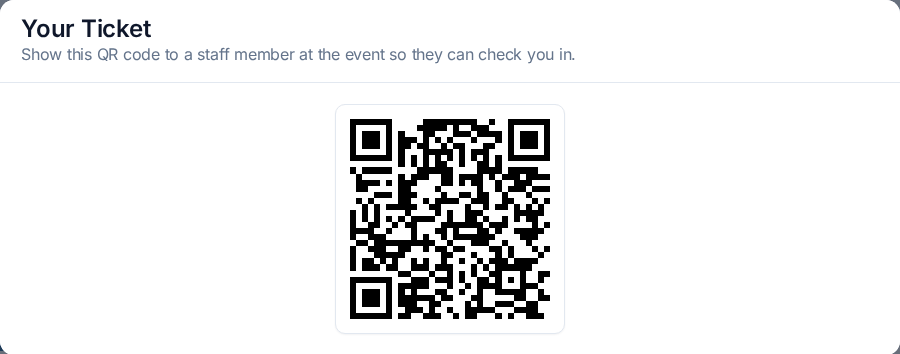
- While you aren't checked in, your course page shows a notice, You're not checked in yet, with a Show Your Ticket button. It opens a QR code. Show it to a staff member and they scan you in.
- The same code is the barcode in your confirmation email and your "starting soon" email.
- If check-in is required, the Claim Credits step shows Check in to claim your credits with the QR code. Once you've been scanned, click Refresh.

If you attended but were never scanned, your course provider can check you in — see Getting Help.
Updating your name or details
Your course page has an Edit Profile link at the top where you can correct your name and answer any registration questions the provider asks. On a course with several parts, open any part to find it — the Parts list doesn't show it.
If your name is wrong, fix it before you download a certificate you intend to keep, and before your credit is reported to an accreditor. See Getting Your Certificate.
Related
- Your First Course, Start to Finish — the whole arc, if this is your first time
- When a Video Won't Complete — why a video shows as unfinished
- Quizzes & Evaluations — attempts, passing scores, and the Submit button
- Getting Your Certificate — what happens after you submit