
Appearance
October 13, 2026 - PowerPoint Slides, Right in Your Course! 📊🎉
You can now add a PowerPoint (.pptx) to any module. Learners page through the slides right on the course page — nothing to install, nothing to download, and no need to turn your deck into a video or an xAPI package first. We record every slide they view, so a required PowerPoint counts toward completion just like a required video.
PowerPoints are part of the new course builder. The classic Materials tab doesn’t offer them. To switch, open any course and click Try the new version at the bottom of the course menu.
Adding a PowerPoint
- Open a module’s Materials page, click Add Material and choose Add PowerPoint.
- Drag and drop your .pptx file, or click to browse. The dialog opens a preview of the slides exactly as your learners will see them — page through it before you publish.
- Check the title and the settings below, then click Save.
The Add PowerPoint Dialog
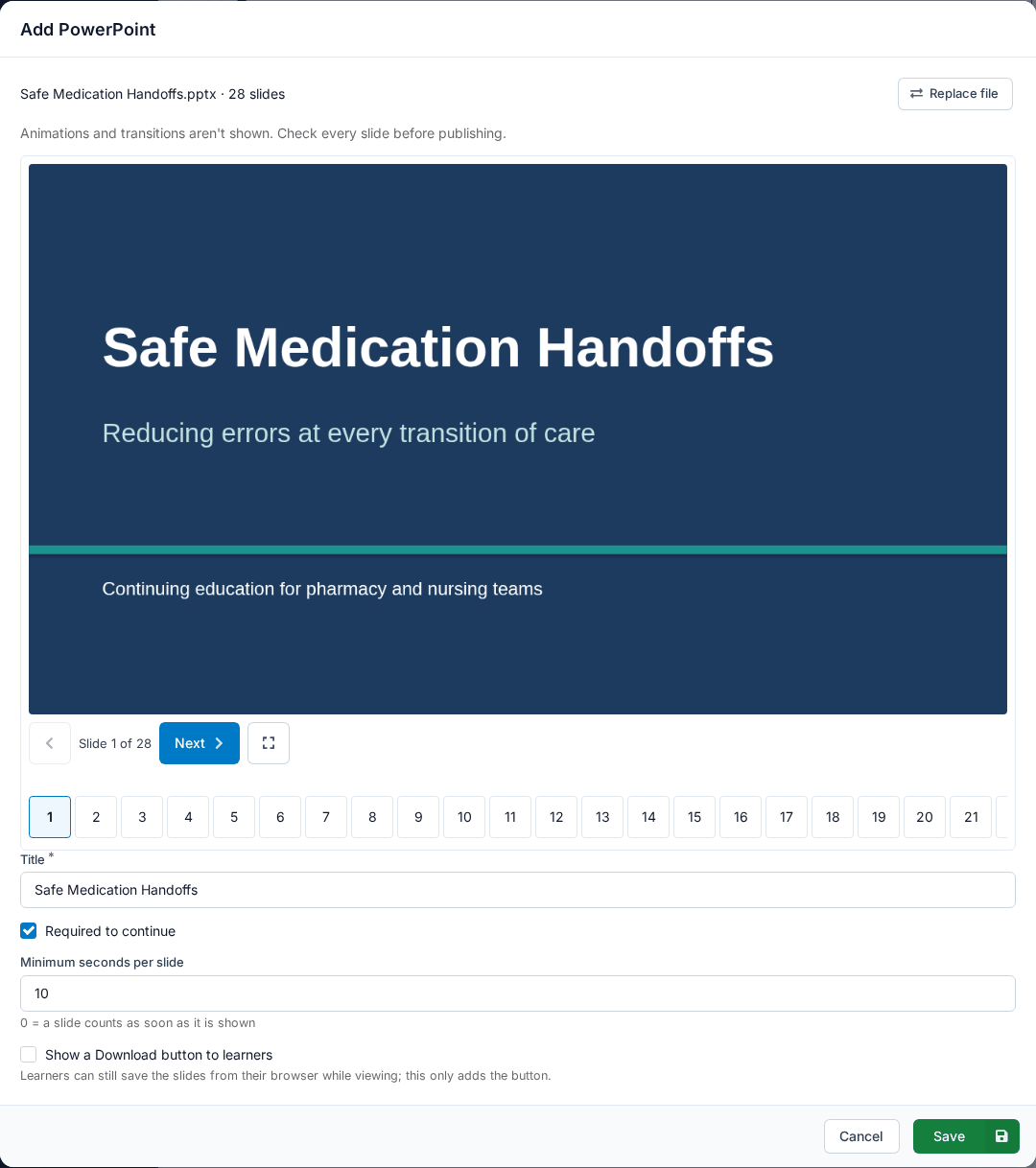
- Required to continue: on by default. Learners must view every slide before they can move past it.
- Minimum seconds per slide: optional, up to 300. A slide only counts as viewed once the learner has stayed on it that long; at 0 it counts as soon as it is shown.
- Show a Download button to learners: off by default. Turn it on to give learners a button that downloads the slides.
Need to update the deck later? Edit the PowerPoint and use Replace file. Learners keep their progress by slide number.
What Your Learners See
The PowerPoint sits in the module’s materials list in the order you gave it, with its status: Not started, In progress (“In progress — 4 of 12 slides”) or Complete!
A Required PowerPoint, In Progress
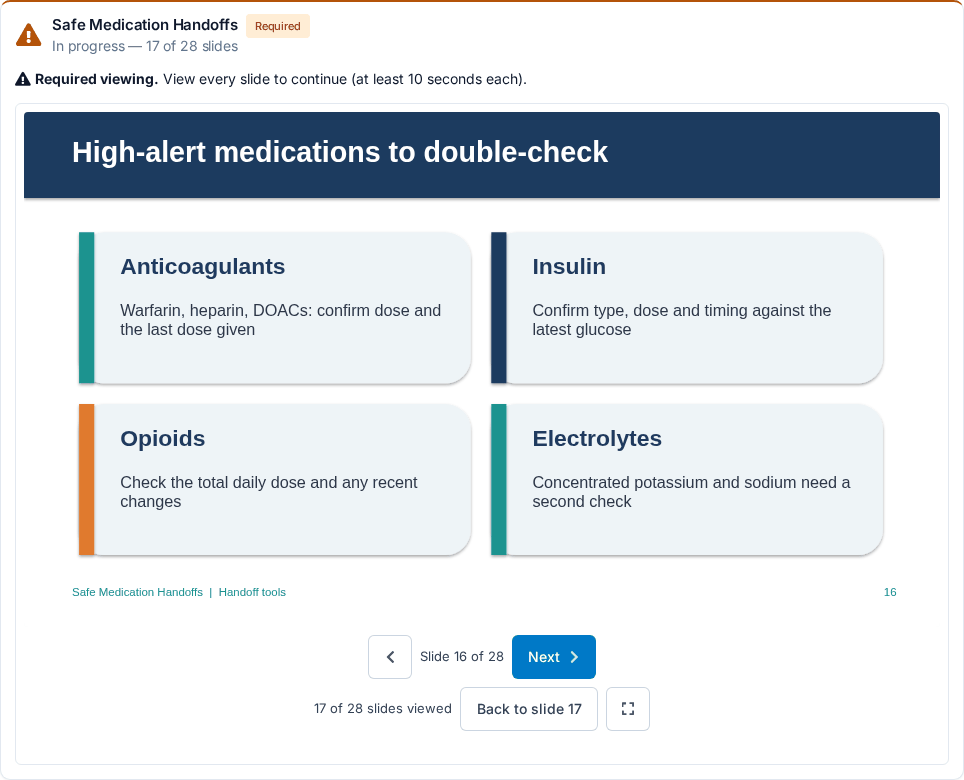
- Slides go in order. Learners use Next and the back arrow, or the arrow keys. They can go back to any slide they have seen, and Back to slide N takes them straight to the furthest slide they reached.
- Picks up where they left off. Progress is saved slide by slide, so a learner who stops halfway comes back to the same slide.
- Full screen: one click makes the slides fill the screen.
- Required means required. A required PowerPoint is labeled Required and holds back the materials after it, and Claim Credits, until every slide has been viewed.
Marking a PowerPoint Complete for a Learner
On the Registrant List, the button that marks a learner’s videos as watched now covers PowerPoints too. Open Update Completion to mark any of their required PowerPoints complete or incomplete. Marking one incomplete resets their slide progress for it.
Good to Know
- .pptx files up to 150 MB. Save older .ppt files, Keynote and Google Slides decks as .pptx first. If a file is too big, compress its media in PowerPoint (File → Compress Media).
- Animations and transitions aren’t played. Each slide shows in its finished state. If your deck depends on animations, publish it as an xAPI (Tin Can) package instead.