
Appearance
October 14, 2026 - Tracked PDFs: Reading That Counts! 📄⏱️
There are now two ways to put a PDF in a module, and they do different jobs. Upload File works just as before: it attaches the PDF for learners to download and keep. The new Tracked PDF is reading that counts: learners open it full screen from the course page, we count how long they have it open, and you can require a minimum reading time before they move on.
Tracked PDFs are part of the new course builder. The classic Materials tab doesn’t offer them. To switch, open any course and click Try the new version at the bottom of the course menu.
Adding a Tracked PDF
- Open a module’s Materials page, click Add Material and choose Add Tracked PDF.
- Drag and drop your PDF, or click to browse. The dialog previews it in the same viewer your learners use, so you can scroll through it before you publish.
- Check the title and the settings below, then click Save.
The Add Tracked PDF Dialog
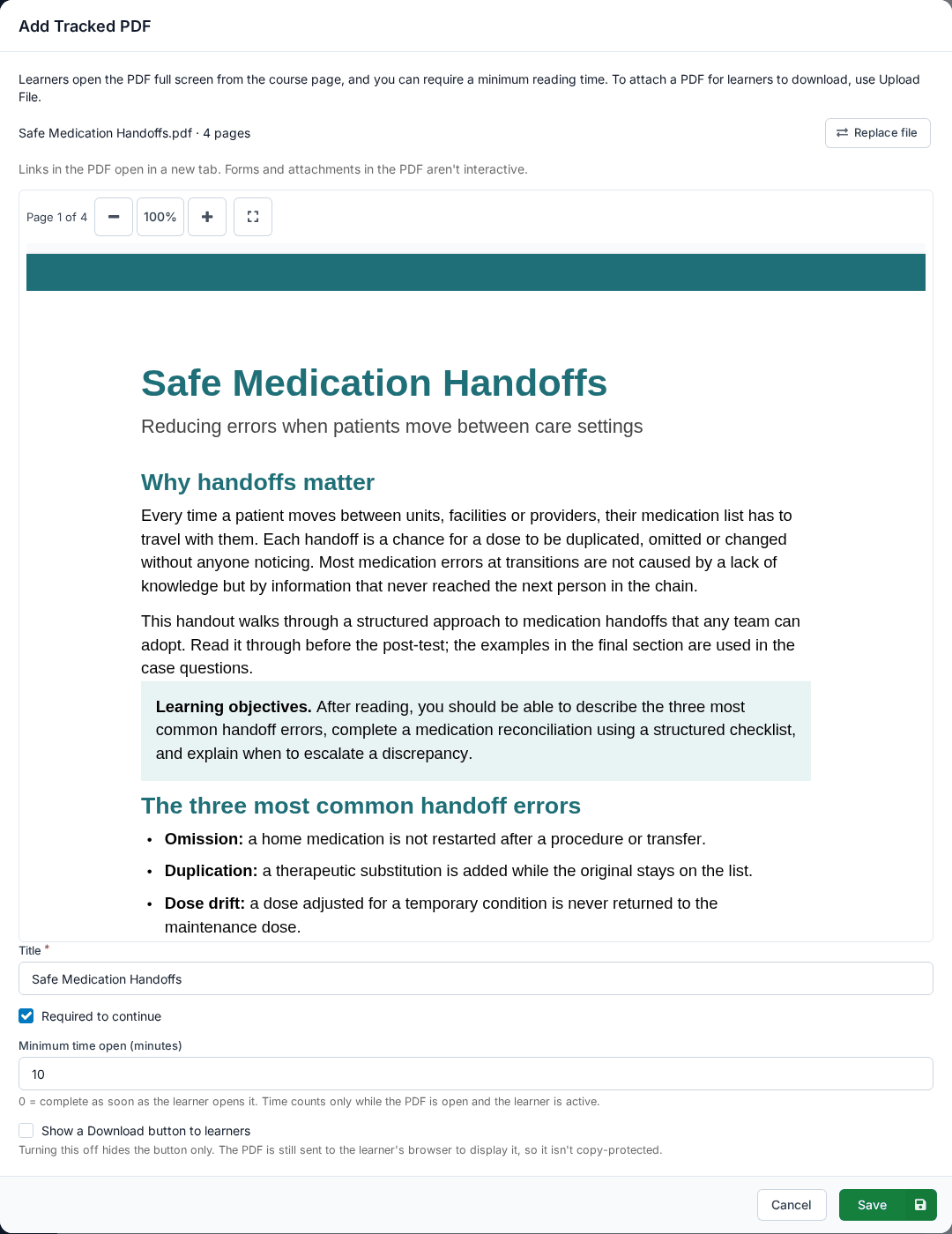
- Required to continue: on by default. Learners must reach the minimum time before they can move past the PDF.
- Minimum time open (minutes): 0 to 480, starting at 0. At 0 the PDF is complete as soon as the learner opens it.
- Show a Download button to learners: off by default. Turning it off hides the button only: the PDF is still sent to the learner’s browser to display it, so it isn’t copy-protected.
Need to update the PDF later? Edit the Tracked PDF and use Replace file. Learners keep the time they’ve already spent.
What Your Learners See
The Tracked PDF sits in the module’s materials list in the order you gave it, with its status: Not started, In progress (“In progress — 4 of 10 minutes”) or Complete! The PDF itself stays off the course page until the learner clicks Open PDF (Continue reading once they’ve started).
A Required Tracked PDF, In Progress

Reading, Full Screen
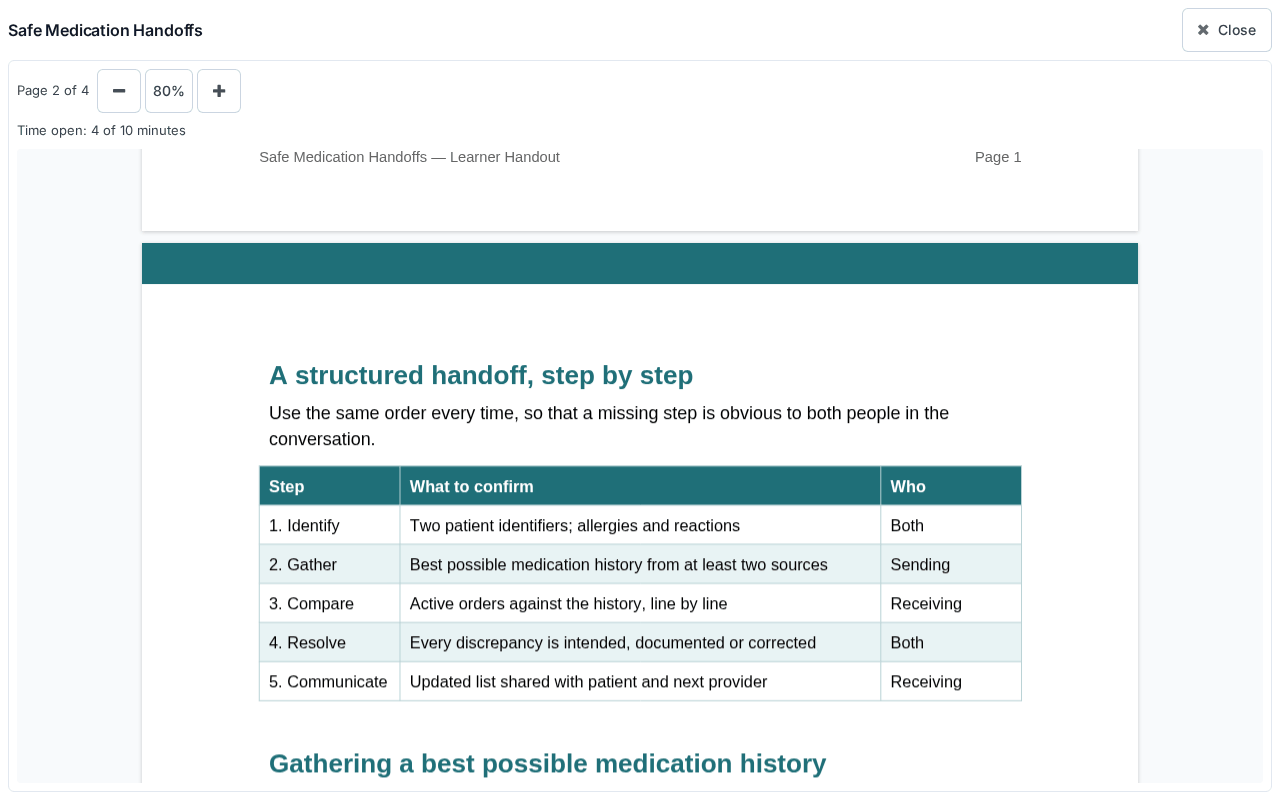
- Full screen, nothing else to distract. The PDF covers the whole screen. Close or Esc takes the learner back to the course page.
- One continuous scroll. Learners scroll through the pages and zoom in and out, or pinch to zoom on a phone or tablet.
- Only real reading time counts. Time counts while the PDF is open, the page is the tab in front of them and they have been active (scrolling, clicking, tapping or typing) in the last 5 minutes. Otherwise the reader shows Paused and says why.
- Picks up where they left off. Their time is saved as they read, so they can stop and come back later, even on another device. The PDF reopens at the page where they stopped.
- Required means required. A required Tracked PDF is labeled Required and holds back the materials after it, and Claim Credits, until the minimum time is reached.
Marking a Tracked PDF Complete for a Learner
On the Registrant List, Update Completion now lists required Tracked PDFs too. Mark any of them complete or incomplete for a learner. Marking one incomplete resets their time for it.
Good to Know
- PDFs up to 100 MB and 2000 pages. Password-protected PDFs can’t be used: remove the password first.
- Very old browsers (roughly Safari older than 16.4) can’t show the PDF. Those learners get Open the PDF in a new tab instead, which isn’t tracked. For a required PDF, mark it complete for them in Update Completion.