
Appearance
November 24, 2026 - Count Audience Polls as Attendance 🙋📊
A module can now require participants to answer audience polls before they claim its credits, with a record of who answered what.
Turn It On
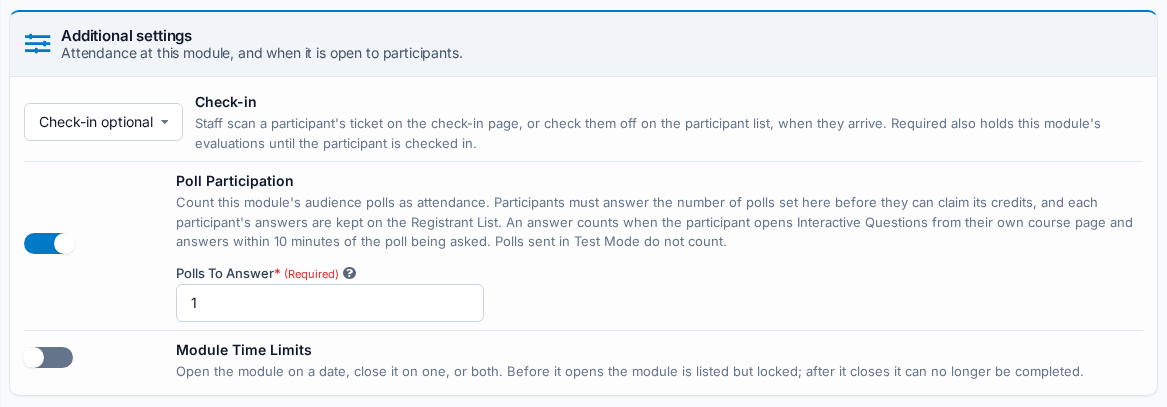
On the module’s settings page, under Additional settings, turn on Poll Participation and enter Polls To Answer. Any answer counts; it does not have to be correct.
What Participants See
During the session they press Interactive Questions on their course page and answer as each poll is asked. The Claim Credits step says how many polls are still needed and opens as soon as they have answered enough.
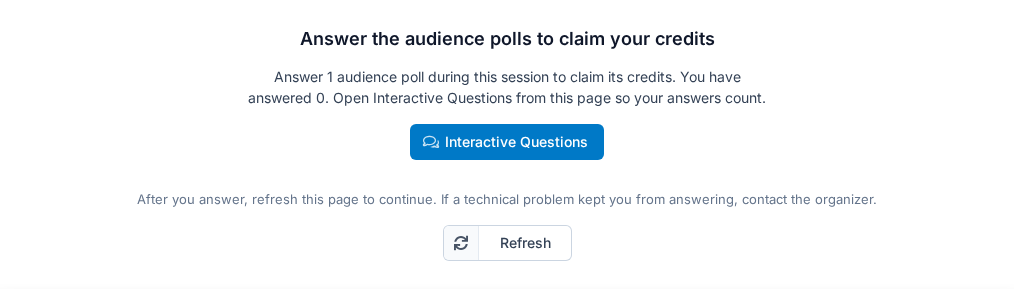
Tell attendees to open the polls from their own course page. Answers from the shared audience link or the QR code are anonymous and count for nobody.
Practice with Test Mode
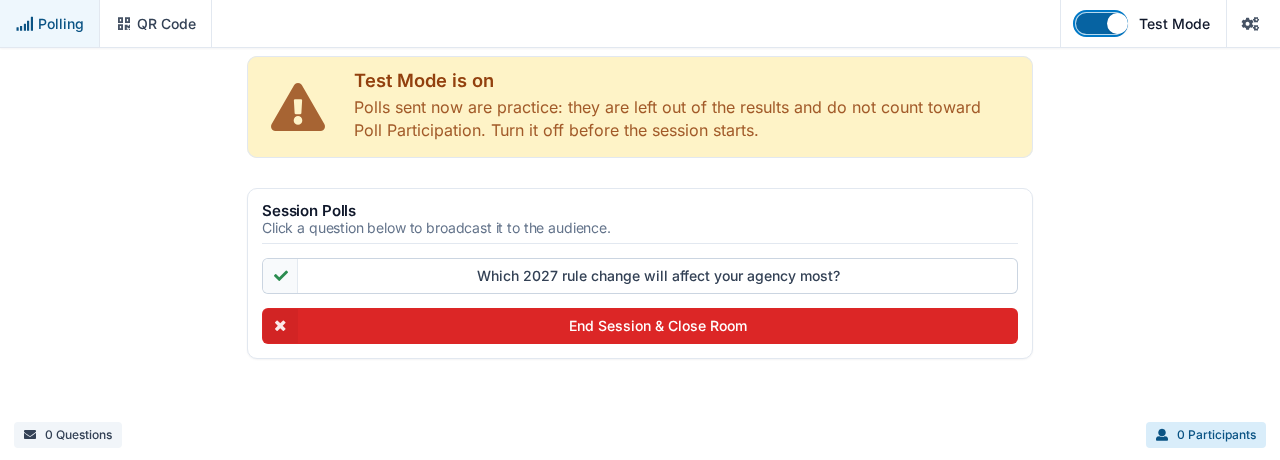
The polling screen has a Test Mode switch. Polls sent while it is on are left out of the results and do not count. Turn it off before the session starts.
Who Answered What
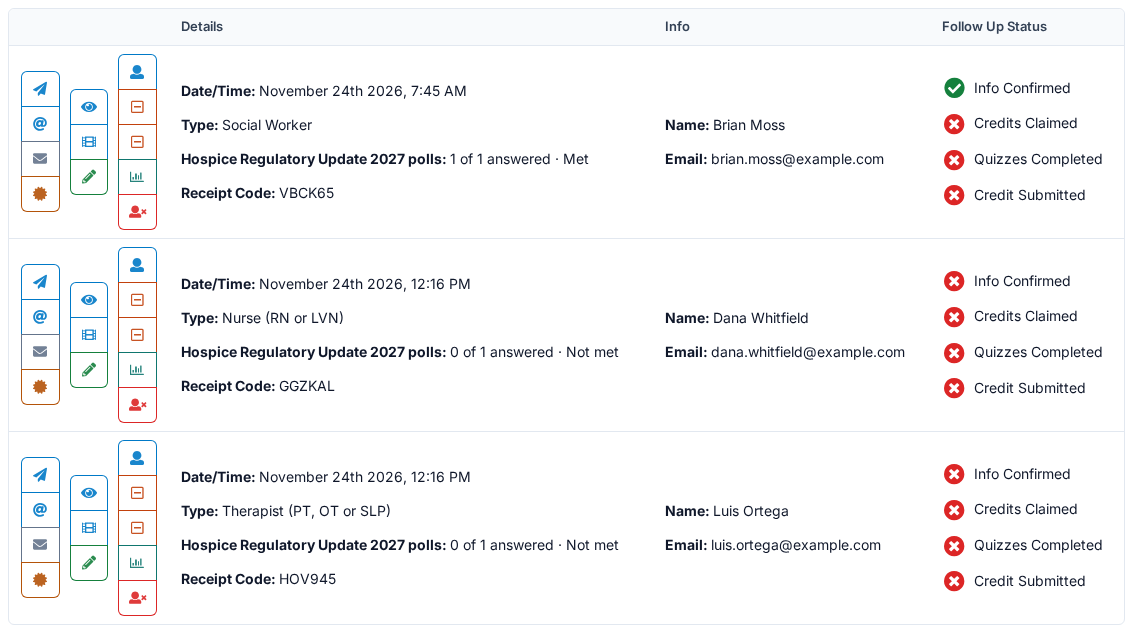
Tools & Reports → Registrant List shows each person’s count as Met, Not met or Excused. The Poll Participation button opens their answers, and Excuse Participant lets someone with a technical problem claim anyway.
An answer counts when it is given within 10 minutes of the poll being asked. The Help Center’s Running a Live Event guide has the whole flow.