
Appearance
What Your Learners See
You'll answer more questions about the learner side of LecturePanda than about your own. This guide walks the experience your learners actually get, so that when someone says "it won't let me finish," you already know where they are.
Registering doesn't create an account
This is the distinction behind most learner confusion, and it's worth getting straight before anything else.
Registering for a course creates a course profile, not a login. The learner's way back in is the link emailed to them — a link unique to them, which returns them to exactly where they left off. No password is involved.
A LecturePanda account is separate and optional. There are two ways to get one:
- At lecturepanda.com. The learner signs up, verifies their email, and every registration made with that address links itself to the account automatically.
- On the registration form. Learners who aren't signed in see a checkbox, "Create an account so I can log in later to access my certificates and learning history". Ticking it creates the account with the address already verified, puts an Account Created! note in the confirmation email, and sends a second email — subject "Set Up Your LecturePanda Account Password" — with a Set Up My Password button. That link works for 24 hours. Until a password is set, signing in sends them to the password setup page; once the link has expired it fails with "Account requires password setup. Please check your email for setup instructions." The way out is the ordinary password reset on the sign-in page ("Forgot your password? Click to reset your password"), which works because the address is already verified. If the address already had an account, no new one is made and no setup email is sent.
So "I never chose a password but it wants one" is a learner who ticked that box. Their course link is unaffected — it never needs the account.
That means there are several places a learner can type their email address, and they look alike but do different things:
| Where they are | What it does |
|---|---|
| Course registration page → "Already registered? Resend your link" | Re-sends the course link for that course |
| The ? icon on a course page | Sends a help request to you, the course admin |
| Resend my access email on the "Please confirm it's you" notice | Re-sends the course link so they can confirm a new device (see below) |
| lecturepanda.com login → password reset | Only works if they have a full account |
| Contact form on lecturepanda.com | Reaches LecturePanda support, not you |
A learner who has taken courses for years but never signed up will get no password-reset email, because there's no account to reset. (Nothing tells them so — we deliberately don't confirm whether an address has an account, since that would let anyone test which addresses exist.) Point them at the resend link on the course page instead, or at Sign Up if they want a permanent home for their history.
Learning History: the "my courses" page
Learners who do create an account get Learning History — every course they've registered for and every certificate they've earned, across every organization using LecturePanda, in one place. It's the answer to "is there somewhere I can see all my registrations?"
It's worth actively encouraging, especially for members who'll take many courses from you over the years. It turns "find the email" into "log in," and it means a lost inbox stops being your problem.
Two things to know:
- It only shows courses tied to a verified email address. An account whose verification link was never clicked shows an empty history while the course link still works perfectly — that split is the giveaway. See Registration & Access.
- Older courses registered under a different address won't appear until that address is added to the account and verified.
Moving through a course
A course has four steps, shown across the top and repeated as buttons at the bottom:
Learning Materials → Claim Credits → Complete Evaluations → Submit
(The strip across the top shortens them to Materials, Credits, Evaluations and Complete.) The forward button is the solid blue one with a chevron pointing right; the back button is the outlined one with a chevron pointing left. Steps that aren't available yet can't be clicked, and the bottom bar says what is still needed — "Watch the required videos to the end to continue.", "Select at least one credit to continue.", "Check in at the event to continue.", "Finish every evaluation to continue." That's the mechanism behind almost every "it won't let me continue": the step isn't broken, something earlier is unfinished.
What gates each step:
- Claim Credits unlocks when the required videos and learning modules are complete. ("Learning Modules" is the learner-facing name of the section holding your xAPI packages. It is an older term and has nothing to do with course modules.)
- Complete Evaluations unlocks once they've selected at least one credit — and, where check-in is required, once they've been scanned in.
- Submit unlocks when every quiz and evaluation on their list is finished. For a live session it also stays locked until that session's own event date; the bar reads "Available once the event starts …" or "… ends …", depending on the course.
That is the whole picture for a course with one module. The learner never sees the word "module" or a list — the course opens straight into the steps.
Claiming a credit is not completing the course
Selecting credits at step 2 records what a learner intends to claim. It doesn't finish the course, and it doesn't produce a certificate — the remaining steps still have to be walked.
If a learner insists they claimed their credit but you can see no completion and no certificate, this is usually what happened. Send them back in to work through the evaluations and submit.
Every video is its own row
Learners see materials in the order you arranged them, with each video as its own row. Every player is on the page already — there is nothing to click open. The row carries a status line: Ready to watch (an optional video), Incomplete, In progress with minutes watched, Complete!, or a padlock reading "Complete [the item before it] to unlock". Required videos wear an orange Required label, and a locked one shows a dimmed box naming the item to finish first, which can be a video or a learning module. A finished video is covered by a card reading Complete! with Replay and Next: …, naming the next required item; when nothing required is left it reads All required items done — continue. ("Up next" with a Continue button now appears only on learning module rows.) So "I finished the video but can't continue" usually means another row isn't marked Complete yet — the Next button points at it.
Courses with several modules: what learners call "parts"
What you build as a module, the learner sees as a part. The learner side never says "module" for this — the list is headed Parts, the buttons say Start This Part, and the emails say "Part of …". Use their word when you answer them. See Course Modules for the organizer side.
A course that shows the learner more than one module opens on the Parts list instead of the four steps, under the line "Please complete the parts below to receive credit." and a count such as "1 of 3 complete".
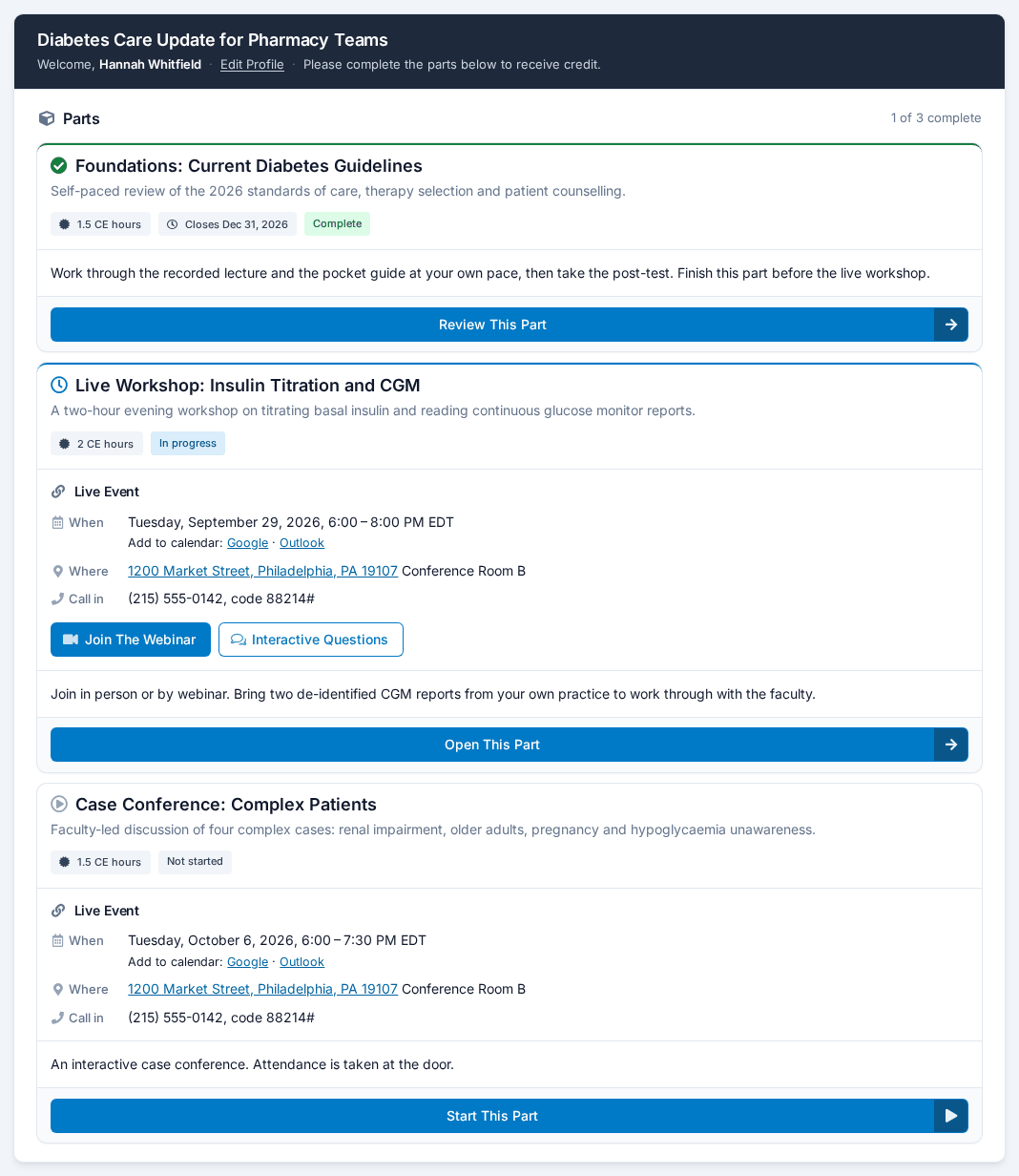
Each card shows the part's name and description, its CE hours, a Closes date when you set a deadline (red in the last week), and a status: Not started, In progress, Complete, Locked or Closed. A live part's card also has a Live Event block with When, Where, Call in and "Add to calendar: Google · Outlook".
| What the learner sees | What is going on |
|---|---|
| Start This Part | They haven't started this part. Only the learner's own click starts a part — no email, link or reminder ever does. |
| Open This Part / Review This Part | Started, or finished. |
| Locked — "Complete … first" / "This course is completed in order." | Your course is set to be completed in order. Only starting is held back; a part they have already started stays open. |
| Locked — "Opens" and a date / "This part is not available yet." | The part's opening date hasn't arrived. |
| Closed — "Closed" and a date / "This part can no longer be completed. Contact the course organizer if you still need access." | The part's closing date has passed. |
| Part Start Blocked | Your account has no registrations left, and this learner has already started another part. See Billing. |
| Registration Inactive | You inactivated the registration. |
| Unable To Start This Part | An unexpected error; ask them to try again. |
Inside a part the learner gets the same four steps, scoped to that part: its materials, its credits, its evaluations, and its own Submit with its own certificates. Above the card a line reads All Parts > part name; All Parts goes back to the list. On the part's last step a button reads Continue: and the name of the next open, unfinished part, or Back to All Parts. A course is complete when every part the learner started is complete.
Two things are missing from the Parts list itself and appear only inside a part: the Edit Profile link and the ? help button.
Where the join link and live questions are
- Join The Webinar is in the Live Event block: at the top of the Learning Materials step, and on the part's card once the learner has pressed Start This Part. It is never shown before Start.
- It is also in the "starting soon" email, about an hour before. It is not in the confirmation email, on any course.
- Interactive Questions sits beside the join button when the session has live questions. There is no email button for it any more, so "where did the polling link go?" has one answer: the course page, or the QR code on the speaker's screen.
Check-in
Check-in is set per module, so the learner meets it inside the part that takes attendance: a notice, You're not checked in yet, with Show Your Ticket (a QR code staff can scan), and on the Claim Credits step Check in to claim your credits with the same code and a Refresh button. The code is the barcode in their emails.
"Please confirm it's you"
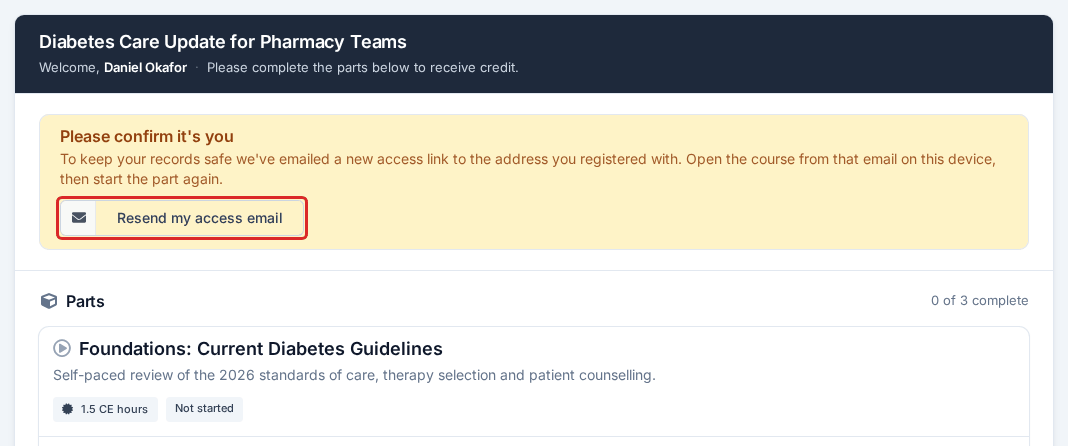
Starting a part is the one learner action that checks the device. On a phone or computer that hasn't opened the course from an email before — or after 60 days away — pressing Start This Part shows Please confirm it's you. LecturePanda has already emailed them a fresh access link; they open it on that device, click Confirm Identity and Continue, and press Start again. Resend my access email on the notice sends another. Nothing is wrong with the registration, and you don't need to do anything, though resending their link from the Registrants list has the same effect.
The emails they get, in brief
Every learner email has one button, the course button. Its wording comes from the registration type — Course Button Label, blank meaning Go To Your Course; registration types that existed before this setting keep Complete Credit Requirements. Learners will quote whichever wording you chose.
| When | Notes | |
|---|---|---|
| Confirmation | At registration | The course button, the check-in barcode if any part takes attendance, and on a course with several parts a "What's included" list. No join link. |
| Set Up My Password | At registration, if they ticked the account box | Link valid 24 hours |
| Day-before notice | The day before a live part | No join link |
| Starting soon | About an hour before a live part — one per live part | Adds Join The Webinar when the learner has a join link; otherwise says the link is on the course page |
| Reminder | Weekly while something is unfinished | "You haven't started yet:" for a learner who has started nothing; a "Parts awaiting your attention:" list on a course with several parts; Disable Reminder at the bottom |
| Now open | When a part opens on a later date | "… is now open." |
An email about one part lands the learner on that part: inside it if they have started it, otherwise on the Parts list with that card outlined for a few seconds. It never starts the part. Emails LecturePanda Sends has the full detail.
Certificates
Certificates are generated the moment a learner completes their requirements and appear as Download Certificate buttons on their completion step — one per credit earned, immediately, with no email to wait for. On a course with several parts, each part has its own completion step and its own certificates; the learner reaches a finished part's certificates with Review This Part.
That page stays available, so getting a certificate again means going back to it: through their own Learning History, through the link in any LecturePanda email they've received, or through a resend you trigger from the Registrants list. Certificate Issues covers the rest.
Name changes
A learner who changes their name — marriage, divorce, a correction — updates it themselves at lecturepanda.com under their profile, then updates the name on each existing registration individually so certificates regenerate correctly. You can also make the change for them from the Registrants list on each course.
Do this before they download a certificate they intend to keep, and before credits are reported to an accreditor.
Point learners at the right help
When a learner is genuinely stuck, the fastest route is usually you rather than us: you can see their registration, their video progress, their quiz attempts and their email history, and almost every fix is on your side.
Common Learner Issues is the page to keep open while you work — it's organized by what the learner reports, not by what's actually wrong, so you can start from their own words.
Hand it to them directly
Everything on this page also exists written to the learner, in Help for Learners — same territory, second person, and every page routes them back to you rather than to us. Share These With Your Learners lists the pages and has wording you can lift for your own emails.
Related
- Help for Learners — the learner-facing version of this page
- Share These With Your Learners — links and copy for your emails
- Common Learner Issues — symptom-first troubleshooting
- Managing Registrations — the admin tools for a learner's registration
- Emails LecturePanda Sends — what arrives in their inbox, and when
- Quizzes & Evaluations — what gates the Submit step