
Appearance
Video Progress & Completion
Why a video shows as incomplete, how progress tracking actually works, and how admins can unblock a stuck learner.
How progress tracking works
When a video plays in LecturePanda's native player, a progress bar along the bottom of the video tracks what the learner has watched:
- The bar is divided into segments. A segment turns green once it has played all the way through, giving you a verifiable record that the content was actually watched.
- Each segment credits when it plays start to finish. Clicking ahead on the bar jumps the player there for review; the skipped portion stays red until it plays.
- Tracking runs while the video is in view, which is what keeps the completion record defensible for CE.
- Progress saves automatically, and returning learners pick up at the last unwatched portion rather than rewatching.
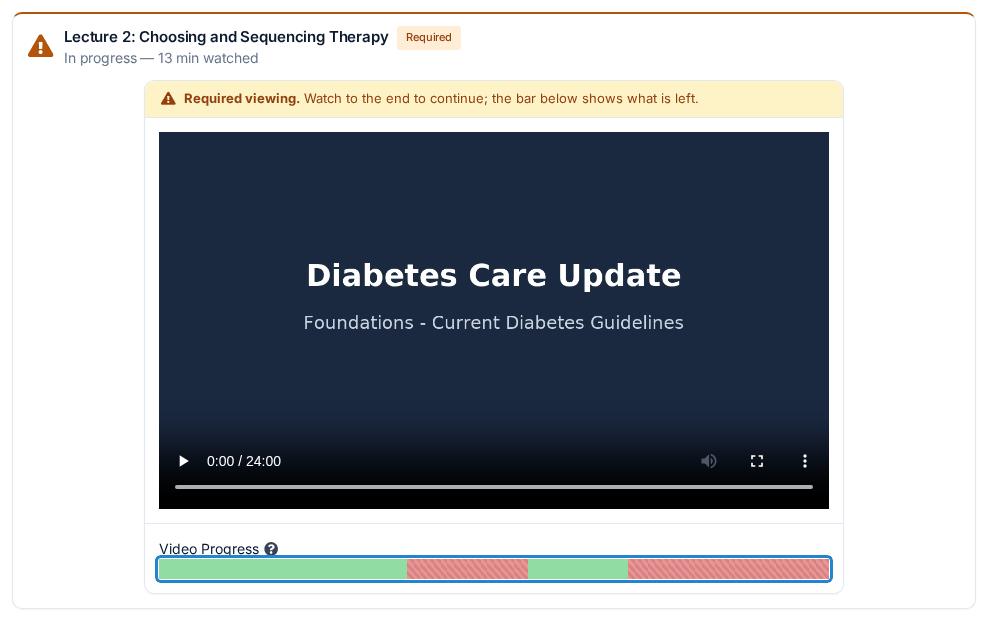
This is what a learner sees mid-course. The two red bands are unplayed sections — the first from skipping ahead, the second from stopping early — and either one is enough to hold the course at the Materials step.
Progress records on the course page
Watch time is captured when the video plays on the course page, where LecturePanda's player is running. A learner who clicks through to Vimeo or YouTube and watches there will need to replay the section on the course page for it to count toward their credit.
Two habits worth flagging to learners
Tracking measures genuine attention, which is what makes it defensible for CE. Two common viewing habits work against that, and neither looks like a problem from the learner's side:
- Watching in a background tab while doing something else. Progress credits while the video is in view, so a learner who starts it and switches away sees little green on the bar even though the video played through.
- Full screen on a phone. Phone viewers who go full screen can see the same result. The giveaway is a learner whose in-video questions were all answered — those still record — while the progress bar has little green.
A line in your course instructions handles both: play the video on the course page, keep it in view, and let each section run through.
"I watched everything but it still shows incomplete"
The two usual causes:
- The learner watched the video outside the course page (on Vimeo or YouTube directly). That time doesn't count.
- The last few seconds of a segment never played — often because the learner closed the tab right at the end, or the tab lost focus.
Learner self-service fix: click the very start of the first red section on the progress bar, press play, and let it run through with the tab in focus — no skipping.
Admin override: mark a video complete
If a learner has legitimately watched the content but tracking didn't capture it, you can mark the video complete for them:
- Open the course and go to the Registrants list
- Find the learner's name
- Click the filmstrip button next to their profile
- Mark the stuck video complete

This unlocks the rest of the course so they can finish evaluations and claim credit.
The bar is green but the learner still can't finish
Something else in the course — or, on a course with several modules, in that part — is still open. In a multi-video course, each video keeps its own saved progress and the learner chooses when to move on to the next one — so the usual answer is a later video they haven't opened yet.
Check the learner's profile for:
- Any video that isn't fully green — on the course page its row shows Incomplete or In progress rather than Complete!, and any video locked behind it reads "Complete [the item before it] to unlock"
- An unfinished quiz or evaluation
The credit-claiming step unlocks only after every required item is done. See Claiming Credit for that side of the flow.
How video status shows on the course page
Each video is its own row in the learner's materials list, in the order the course presents them, with a status line under the title:
- Ready to watch — not opened yet. Optional videos (no watch requirement) always show this, even after playing through; they have nothing to track and never block the course.
- Incomplete, or In progress with the minutes watched — a required video the learner has started but not finished.
- Complete! — the requirement is met.
- A padlock reading "Complete [the item before it] to unlock" — a video set to Require Entire Video to Be Watched stays locked until every video before it in the list is finished, and its row can't be opened until then.
Clicking a row opens the player in place — one video open at a time — and each video resumes at the learner's last position. When a completed video is followed directly by another video, the learner gets an Up next prompt with a Continue button. A finished video shows a Complete! card over the player with a Replay button, which restarts it from the beginning.
On a course built from several modules, each part (the learner's word for a module) has its own materials list, and the lock only looks at the videos in that part.
Are there time limits on videos?
You set the pace: a section runs exactly as long as the video you put in it. A 12-minute video and a 3-hour video work the same way — the learner plays it through and the section completes — so you can build to whatever seat-time your accreditor requires.
Related
If the video won't load or play at all (black screen, no controls), that's a hosting/URL issue rather than a tracking issue — see Video Won't Play or Track.